
The First Hurdle: Getting Alexa to ‘Find’ Your Network
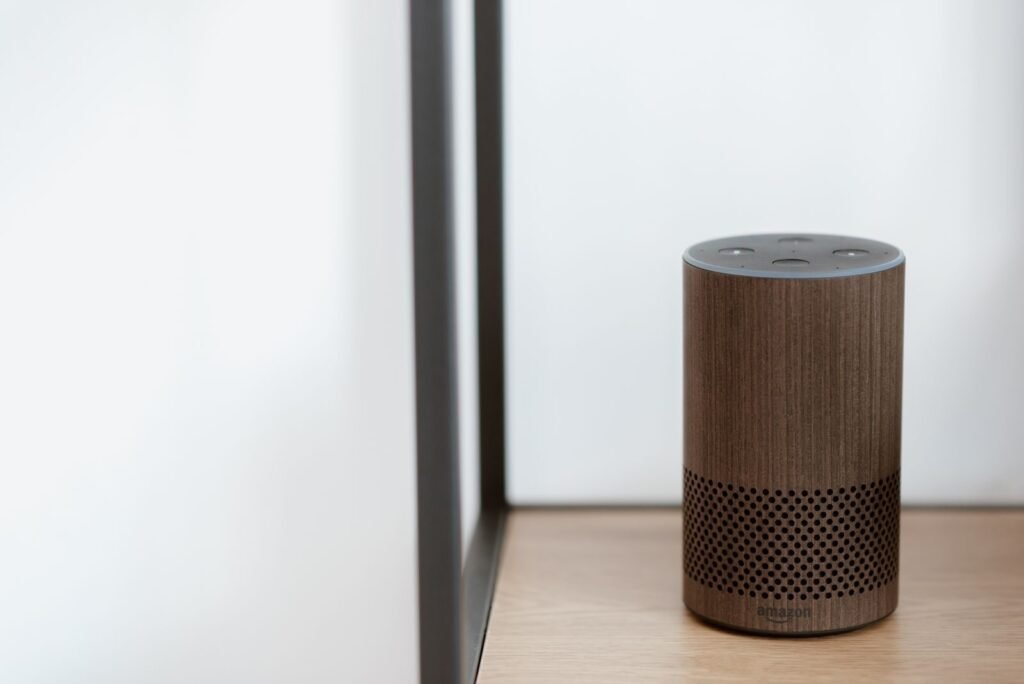
Alexa doesn’t automatically discover your internet connection — it needs a deliberate handshake between the device and your router before it can do anything useful. Understanding why that handshake fails is the key to fixing it fast.
Setup Mode is non-negotiable. Before your Echo can process a single request, it must enter a specific discovery state that makes it visible to the Alexa app. Without this, knowing how to connect Alexa to WiFi becomes an exercise in frustration — the app simply won’t detect the device, no matter how many times you retry.
The clearest sign that your Echo is ready is its orange light ring. According to Reolink, an orange spinning LED is the universal signal that an Alexa device is in Setup Mode and ready to connect to Wi-Fi. If you see it, you’re in good shape. If you don’t, the device hasn’t entered that discovery state yet.
Action Button tip: If the orange light doesn’t appear on its own, hold down the Action button — the one marked with a dot — for 15 to 20 seconds until the ring turns orange. From there, the Alexa app can detect the device and walk you through the rest of the process, starting with a few steps inside the app itself.
Standard Setup: Using the Alexa App for Home Networks
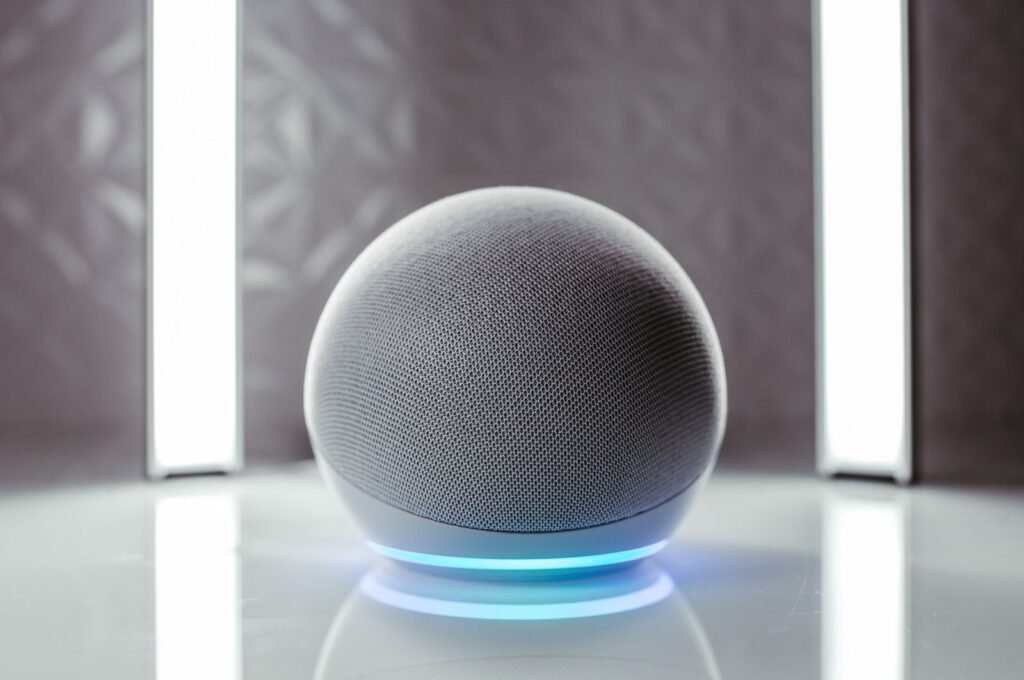
The fastest answer to “how do I connect Alexa to WiFi” is a four-step process inside the Alexa mobile app — but each step has a specific failure point worth knowing before you start.
Skipping even one of these steps is the most common reason setup stalls entirely.
Open the Alexa app and tap “Devices” — the icon at the bottom right of the screen. This is your control panel for all Echo hardware.
Tap the “+” icon in the top right corner, then select “Add Device,” followed by “Amazon Echo” and your specific model. The app will guide Alexa into setup mode automatically.
Enable Bluetooth on your phone before proceeding. The app uses Bluetooth for initial device discovery, not just Wi-Fi. Without it active, the app often fails to detect the Echo at all — a frustrating dead end that trips up a surprising number of users, given that Amazon Echo devices dominate the U.S. market with a 60% to 67% share, representing approximately 69.9 million users as of 2025.
Select your network carefully. When the Wi-Fi selection screen appears, you’ll likely see both 2.4GHz and 5GHz bands listed.
Pro Tip — 2.4GHz vs. 5GHz: Always choose the 2.4GHz band during initial setup. Older Echo models don’t support 5GHz at all, and even newer dual-band devices connect more reliably at 2.4GHz over distance. The 5GHz band offers speed but sacrifices range and wall penetration.
If the app-based route isn’t available — say, you’re setting up without a smartphone — there’s a browser-based workaround worth knowing about.
The Browser Workaround: Connecting Without the Mobile App
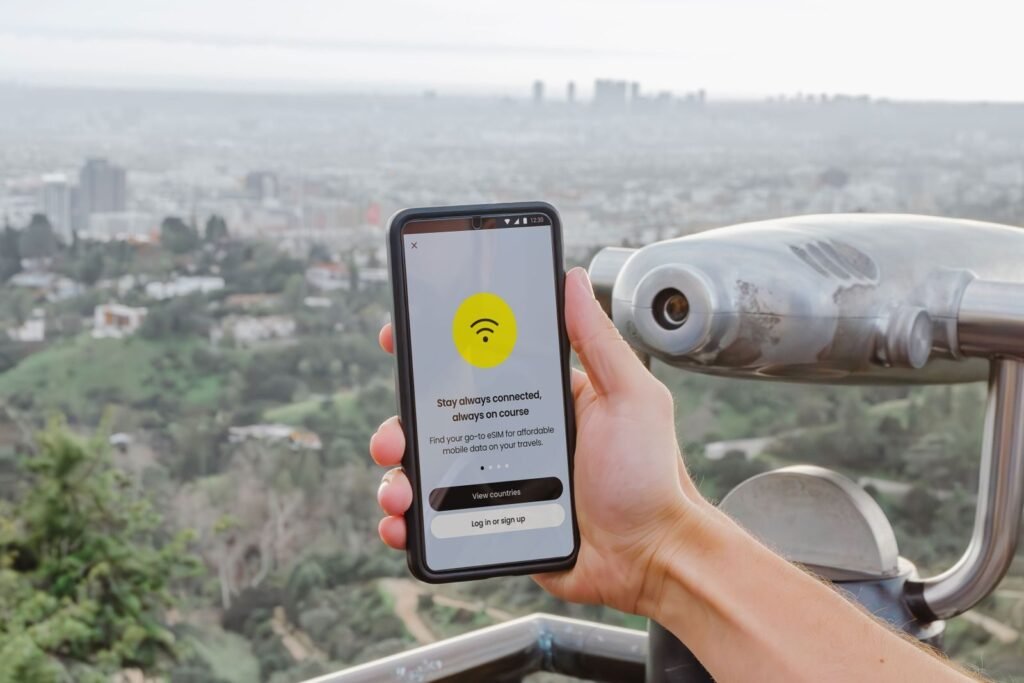
Not having your phone nearby doesn’t have to block your setup — you can learn how to connect Alexa to internet entirely through a web browser on any laptop or tablet.
The key fact: according to CNET, alexa.amazon.com provides device setup capabilities without ever opening the mobile app.
Here’s how the process works in practice:
Put your Echo in setup mode. Hold the action button until the light ring turns orange. The device is now broadcasting a temporary Wi-Fi signal.
Find the ‘Amazon-XXX’ network. Open your computer’s Wi-Fi settings. You’ll see a temporary network — labeled something like “Amazon-A1B” — that your Echo is broadcasting directly. This is the setup handshake signal.
Connect your computer to that network. Switch your laptop’s active Wi-Fi connection from your home network to the Amazon-XXX signal. Your browser’s internet access will pause briefly — that’s expected.
Open alexa.amazon.com. Navigate there, sign in to your Amazon account, and follow the on-screen prompts to select your home network and enter its password.
Switch your computer’s Wi-Fi back. Once the Echo confirms it’s connected, reconnect your laptop to your home network.
Bold callout: The Amazon-XXX network is temporary — it disappears automatically once setup completes.
One caveat worth noting: this browser method works cleanly on standard home networks. However, if you’re attempting setup on a hotel network, a workplace network, or anywhere with a login splash screen, the process gets significantly more complicated — and that’s a situation that deserves its own explanation.
Public Wi-Fi and Captive Portals: Why Alexa Fails at Hotels
Alexa devices consistently fail on public networks because they cannot navigate the browser-based login screens those networks require — and that’s actually by design.
If you’ve ever wondered how do I connect Alexa to the internet while traveling, the short answer is: not through hotel Wi-Fi. Public networks like those in hotels, dorms, and coffee shops use what’s called a captive portal — a web page that appears before granting internet access, asking you to accept terms, enter a room number, or log in with credentials. Alexa has no built-in browser, so it simply stalls at that invisible gate. The connection handshake never completes.
“Public or guest WiFi networks often require additional login steps that Alexa can’t handle, so it’s usually best to connect it to your private home network.” — a reliable source
⚠️ Warning: Beyond the technical dead-end, public networks carry real security risks for smart speakers. Any device on a shared network is potentially visible to other users on that same connection. A smart speaker that’s actively listening becomes a much more sensitive liability on an unsecured public network than it would be on a password-protected home connection.
A travel router offers a practical workaround. A compact travel router — typically priced between $30 and $80 — connects to the hotel’s network through its own browser, handles the captive portal login independently, and then broadcasts a clean private Wi-Fi signal that Alexa can join without issue. It essentially creates a private home-style network wherever you are.
That said, for everyday use, a private home network remains the only truly reliable environment for Alexa. If you’ve recently changed your home router or updated your network password, the reconnection process involves a specific set of steps — which is exactly where the next section picks up.
Updating Wi-Fi Settings After a Router Change
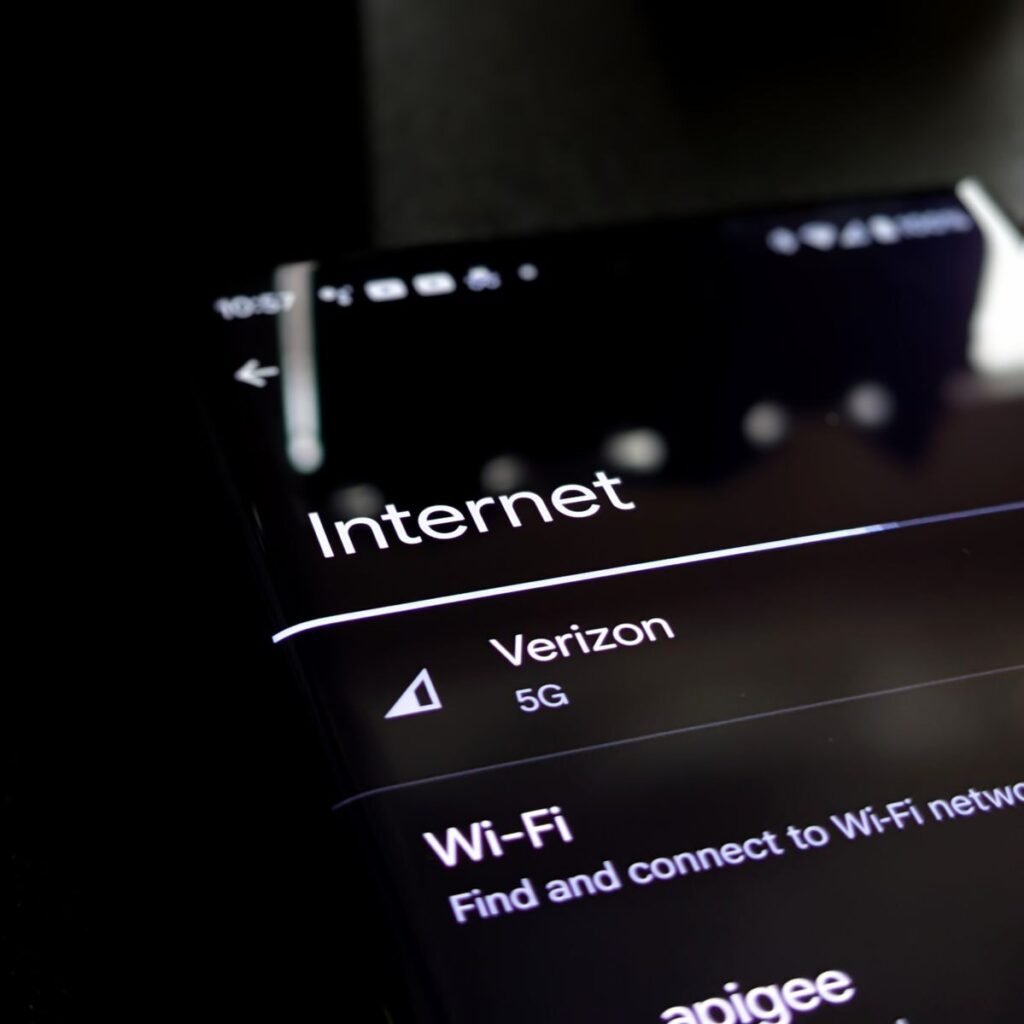
Switching to a new router or ISP is one of the most common reasons Alexa suddenly loses its connection — and knowing how to connect Alexa to the internet again after that change is simpler than most users expect.
A router swap doesn’t just change your password; it creates an entirely new network profile that Alexa cannot detect on its own. The device holds onto its old credentials and keeps failing silently, which is why a manual reset is always required.
Here’s the core process to re-establish the connection:
Open the Alexa app and navigate to Settings. Select your device from the list, then tap Change next to “Wi-Fi Network” — this is the entry point for any credential update, as noted by Amazon’s device forums.
Put the device back into Setup Mode. Even for a simple password update, the app will prompt you to hold the Action button until the orange light returns. Skipping this step is the single biggest reason re-connection attempts fail.
Clear old network profiles before finishing. If the device previously connected to a similarly named network, a ghost profile can cause a connection loop — completing Setup Mode fully overwrites it.
Verify success with a voice command — simply say “Alexa, what’s the weather?” A confident spoken response confirms the connection is live. No response, or the familiar “I’m having trouble connecting” reply, means Setup Mode didn’t complete cleanly and the process needs to be repeated. These fundamentals — the orange light, the Action button, the right network type — all point toward a handful of core principles worth keeping in mind.
The Bottom Line: Alexa Connectivity Essentials
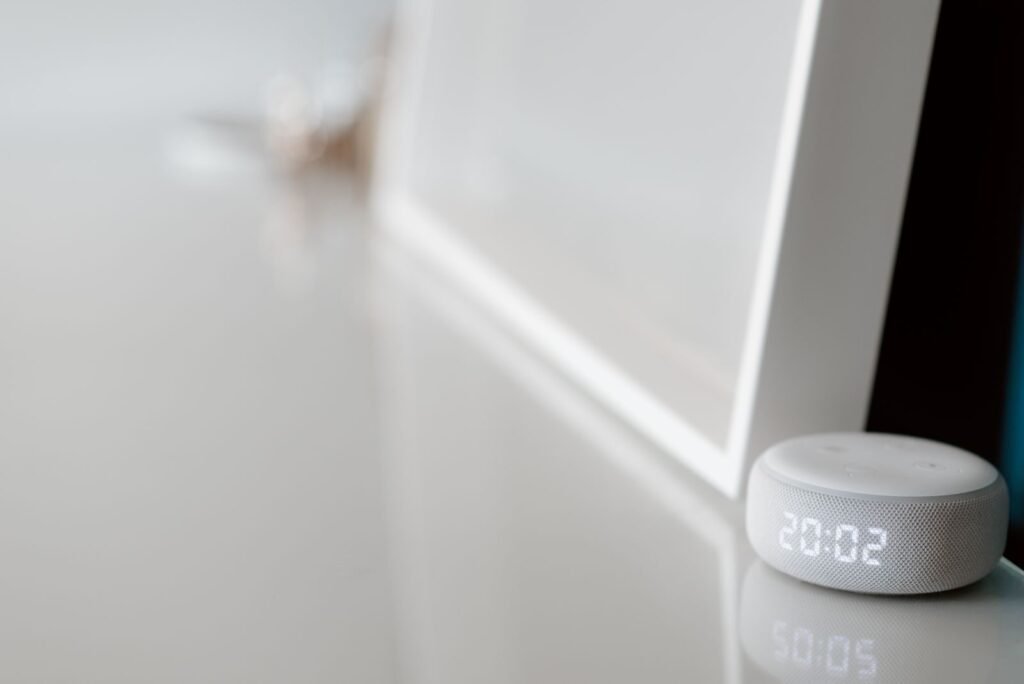
Getting Alexa online reliably comes down to four principles — and ignoring any one of them is usually why the connection fails in the first place.
The orange light is your only reliable signal that Alexa setup mode is active. No orange spinning ring means the device isn’t waiting for a network handoff, and proceeding without it wastes time. Before touching any app setting, confirm that light is present.
The Action button is your manual override. When the Echo doesn’t enter setup automatically, a long press on that button forces the process to restart. It’s the single most-skipped step when troubleshooting a failed connection.
Web-based setup is a full alternative. If the Alexa mobile app isn’t cooperating, alexa.amazon.com provides the same Wi-Fi configuration workflow through any desktop browser — no phone required.
Public Wi-Fi simply won’t work. Captive portals used by hotels, cafés, and campus networks block the authentication process that Alexa requires. A private, password-protected network isn’t optional — it’s a hard requirement.
Each of these points builds on the others. A private network means nothing if the device never enters setup mode; the orange light means nothing if you’re pointed at a hotel network. When all four conditions align, the connection typically completes without issue. If it still doesn’t, the next step is a deeper dive into offline status signals and what to do when the device appears connected but refuses to respond.
Troubleshooting the ‘Offline’ Status
When Alexa shows as offline and nothing obvious explains it, a structured reset sequence almost always surfaces the real problem.
Start with power cycling — unplug both the Echo device and the router, wait a full 30 seconds, then bring the router back online first before reconnecting the Echo. This clears stale network states that software restarts simply can’t touch. It’s the single most effective first move, and it resolves the majority of sudden offline issues.
Check for 2.4GHz interference next. Baby monitors, cordless phones, microwaves, and older Bluetooth devices all compete on the same frequency band. If the Echo is within a few feet of any of these, relocate it or switch the device to a 5GHz band if your router supports dual-band output.
The nuclear option — a full factory reset — should be a last resort, not a first instinct. A reset wipes all saved settings, meaning you’ll need to reconnect everything from scratch. Note that you can connect Alexa without app access in some cases using the Alexa web portal at alexa.amazon.com, which helps if your phone is unavailable during setup.
Know when to escalate. Before calling Amazon support, check your ISP’s outage map — a neighborhood-wide outage makes troubleshooting pointless. If connectivity is confirmed on your end and the Echo still won’t respond after a factory reset, Amazon’s device support is the appropriate next step.
Next Steps: Run the power cycle first, rule out interference, and only factory reset if both fail. Check your ISP status page before contacting support — it saves time and frustration.
Conclusion: Mastering Your Smart Home Connection
After troubleshooting hundreds of smart home configurations, I’ve learned that Alexa connectivity issues are rarely about “broken” hardware and almost always about communication gaps between the device and the router. Whether it’s a 2.4GHz interference issue or a stubborn captive portal at a hotel, the key is understanding that your Echo is simply waiting for the right signal. I always recommend keeping your Alexa app updated and occasionally checking your router’s device list to ensure your Echo isn’t being “throttled” by older network protocols.
If you’ve followed these steps and still find yourself asking, “how do I connect Alexa to the internet?” don’t hesitate to reach out to support, but 90% of the time, that 20-second Action button hold is the magic fix you need. Smart homes are meant to make life easier, not more complicated. By mastering these setup fundamentals, you’re ensuring that the next time you ask for the weather, you actually get an answer instead of a connection error.
Key Terms to Know
Setup Mode: A discovery state where the Echo broadcasts its own temporary Wi-Fi signal (Amazon-XXX) to allow the app to configure it.
Captive Portal: A web page that requires user interaction (like entering a room number or accepting terms) before granting internet access, common in hotels.
Action Button: The physical button on an Echo (usually marked with a dot) used to manually trigger setup or reset the device.
2.4GHz vs. 5GHz: Different frequencies of Wi-Fi; 2.4GHz travels further, while 5GHz is faster but has shorter range.
Frequently Asked Questions About Alexa Connectivity
Why does the Alexa app need Bluetooth for Wi-Fi setup?
The app uses Bluetooth for a discovery process to find the Echo device before handing off the Wi-Fi credentials. If Bluetooth is disabled, the app cannot ‘see’ the device to initiate the handshake.
What does a pulsing orange light mean vs. a spinning one?
While a spinning orange light confirms Setup Mode, a pulsing orange light often indicates the device is actively attempting to connect but failing due to an incorrect password or router interference.
How long should I hold the Action button for setup?
Most Echo devices enter setup mode after holding the Action button for approximately 5 to 20 seconds.
Quick Comparison: 2.4GHz vs. 5GHz for Alexa
|
Feature |
2.4GHz Band |
5GHz Band |
|---|---|---|
|
Best For |
Long range & through walls |
High speed & low interference |
|
Range |
Superior (up to 150-300 ft) |
Limited (up to 50-100 ft) |
|
Wall Penetration |
High |
Low |
|
Interference |
High (Microwaves, Bluetooth) |
Low (Fewer household devices) |
|
Compatibility |
All Echo Models |
Newer Echo Models Only |