
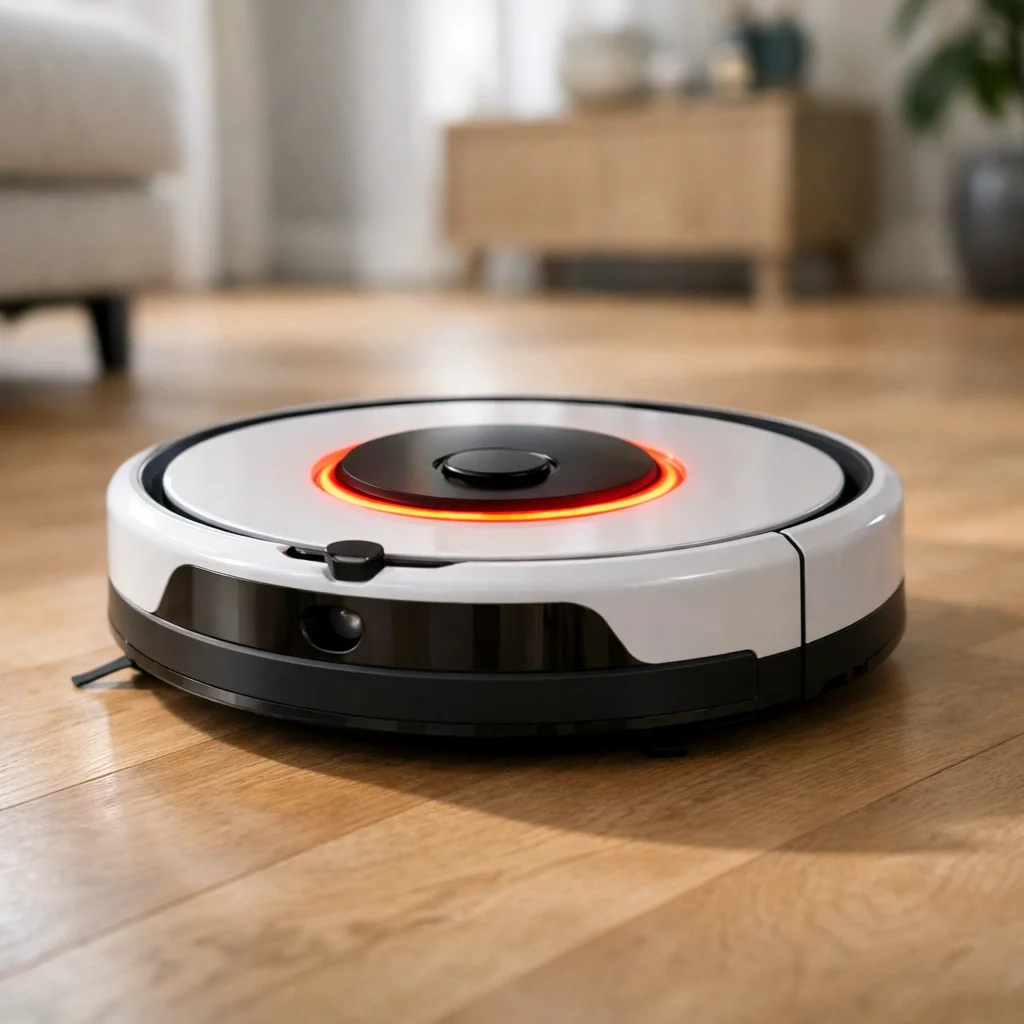
What Error 15 Actually Means for Your Roomba
Roomba Error 15 is one of the most misleading fault codes in the lineup — the manufacturer says it's already fixed, yet your robot sits there, going nowhere.
According to iRobot's official support documentation, Error 15 is classified as an "internal error" that the robot has already resolved on its own. The guidance is essentially: don't worry about it, press clean, and move on. For a significant portion of users, that advice works exactly once — and then the error returns.
The battery swap trap catches a lot of owners off guard. iRobot acknowledges that reinserting or replacing the battery will trigger a one-time Error 15 signal upon power-up as expected behavior. That's an important distinction. A single occurrence after a battery change? Normal. A robot that cycles through the error on every attempted clean cycle, or refuses to move at all? That's a different problem entirely.
Commonly affected models span a wide range — from the 960, i-series, and s-series through to the newer j-series — which suggests the underlying cause isn't limited to one hardware generation.
Knowing whether you're dealing with a one-time glitch or a persistent loop is the critical first step. As it turns out, on j7 and j9 models especially, the answer often lives inside the software itself — and a specific firmware version appears to be at the center of it.
The Firmware Bug: Why Your j7 or j9 is Failing
A specific firmware release is a documented root cause of Error 15 on newer Roomba models — and knowing that changes your entire troubleshooting approach.
Software version 23.53.7 has been identified as a primary culprit. iRobot has confirmed that this update triggers Error 15 specifically on j7 and j9 models during directed room cleaning missions. The critical detail here is the type of cleaning task involved: robots running 23.53.7 fail almost exclusively when sent on a Directed Room mission, while a standard Clean Everywhere command often completes without issue. That distinction alone tells you the bug lives in the mission-routing logic, not the hardware.
As Appuals explains, "Error 15 on the iRobot often indicates that a crucial firmware module either didn't load correctly or is locked in a loop." In practice, what happens is the robot attempts to load a specific navigation module tied to room-level mapping, that module stalls, and the system throws Error 15 rather than proceeding with incomplete instructions.
Symptoms specific to the 23.53.7 firmware bug include:
- Error 15 fires only during Directed Room jobs, not whole-home cleaning
- The robot returns to base immediately after the error — no movement attempted
- Repeated attempts produce the same result without variation
- The iRobot Home App shows the mission as failed with no partial progress logged
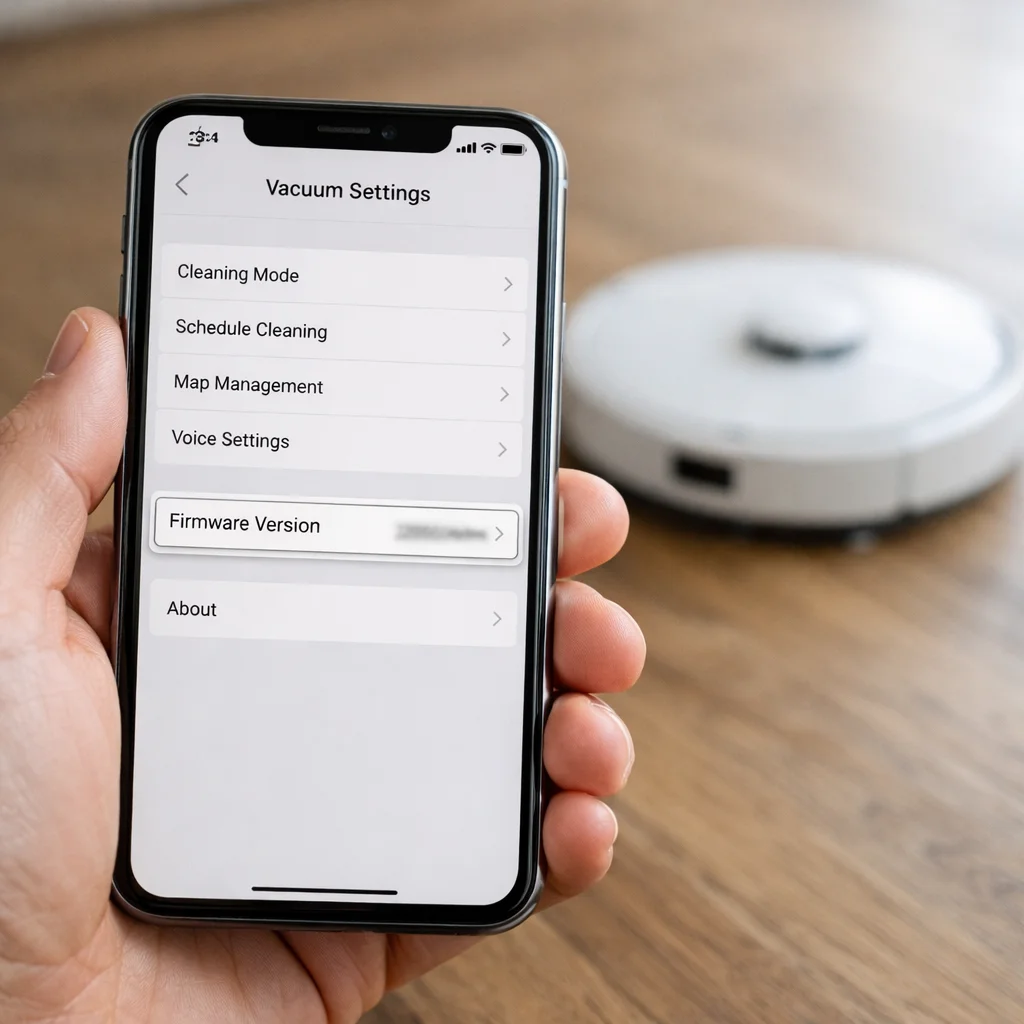
To check whether you're running the affected version, open the iRobot Home App, tap your robot's name, select Settings, then scroll to About. Your firmware version appears under the software heading. If 23.53.7 is listed, a simple app reboot won't resolve this — which is exactly why knowing how to hard reset Roomba correctly becomes the necessary next step.
How to Hard Reset Your Roomba to Clear the Error
A hard reset is the most reliable first move when Error 15 appears — and doing it correctly means more than just cycling the power.
The app reboot won't cut it here. A soft restart through the iRobot app only refreshes the connection layer; it leaves the firmware initialization state and temporary cache intact. What you need is a full hardware-level reboot that forces the Roomba to reload its core processes from scratch.
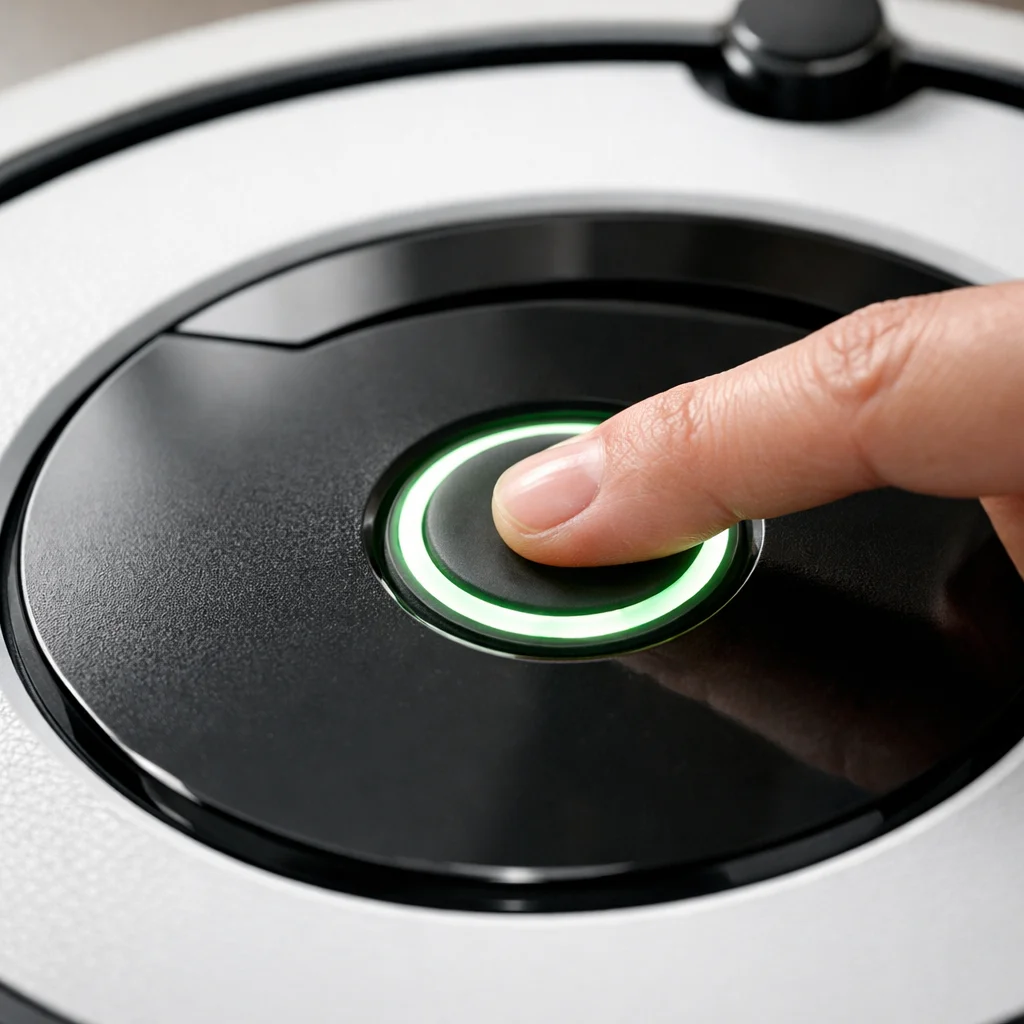
According to Appuals, a hard reboot is performed by holding the Clean button for 20 seconds until you hear a tone and the light ring resets. This clears the temporary cache that gets corrupted during a failed firmware cycle — the exact condition driving most Error 15 loops.
Steps to perform a hard reset:
- Place the Roomba on a flat surface and leave it completely still.
- Press and hold the Clean button for a full 20 seconds.
- Wait for the audible chime and light ring change before releasing.
- Allow the robot to sit undisturbed for 90 seconds while it reinitializes.
⚠ Warning: Do not move the robot during the reboot process. Interrupting the cycle mid-reinitialize can deepen the initialization failure.
Model-specific note: On the s-series, the button press sequence is the same, but the light ring behavior differs — expect a brief white pulse rather than a full spin. On the i-series, the ring sweeps clockwise before going dark. Both confirm a successful cache clear.
If you're working through Roomba 960 error 15 troubleshooting, this hard reset step applies — though the 900-series has some additional quirks worth addressing separately, which the next section covers in detail.
Troubleshooting the Roomba 960 and 980 Series
The 900 series presents its own distinct Error 15 patterns — and treating it exactly like a j7 or j9 will send you down the wrong path.
The 960 and 980 are especially vulnerable to communication-based failures. According to iRobot's support documentation, when an iRobot internal error 15 appears on every single cleaning job in the 900 series, it signals a persistent communication failure — not a one-off glitch. That distinction matters because it shifts the fix from a simple reboot toward a deeper diagnostic process.
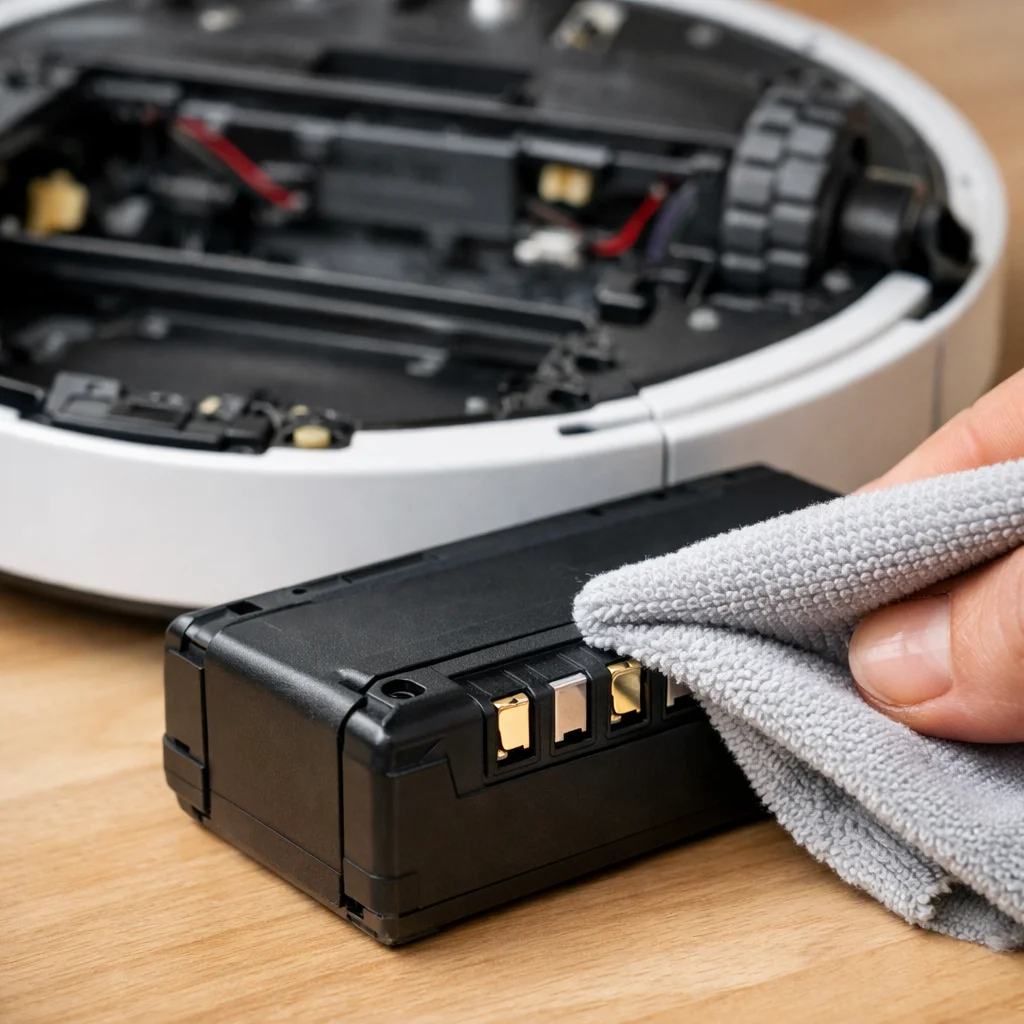
Battery contacts are a frequently overlooked culprit on the 980. Oxidation or debris on the contacts between the battery and the chassis can interrupt the low-level handshake that happens at startup. A common pattern is for this to appear as a software error when the real problem is physical. Removing the battery, cleaning the contacts with a dry cloth, and reseating it firmly resolves the error in a surprising number of cases.
The Clean button also plays a specific role on 900-series models. Holding it down for 10–20 seconds during a non-responsive state can force the internal log to clear, giving the processor a clean slate without a full factory reset.
- 960 owners: Prioritize checking Wi-Fi interference before hardware
- 980 owners: Inspect battery contacts first — especially on units older than two years
- Both models: If Error 15 survives a hard reset and a battery re-seat, suspect hardware failure over software
When none of these steps move the needle, the error has likely crossed from software into a failing internal component. That's worth keeping in mind as you consider whether mapping and sensor conflicts — covered next — could be adding a second layer of complexity to the problem.
Mapping and Sensor Conflicts: The Hidden Triggers
Your Roomba's internal logic doesn't exist in isolation — the physical world feeds directly into its software, and environmental conflicts can absolutely push it into an Error 15 loop.
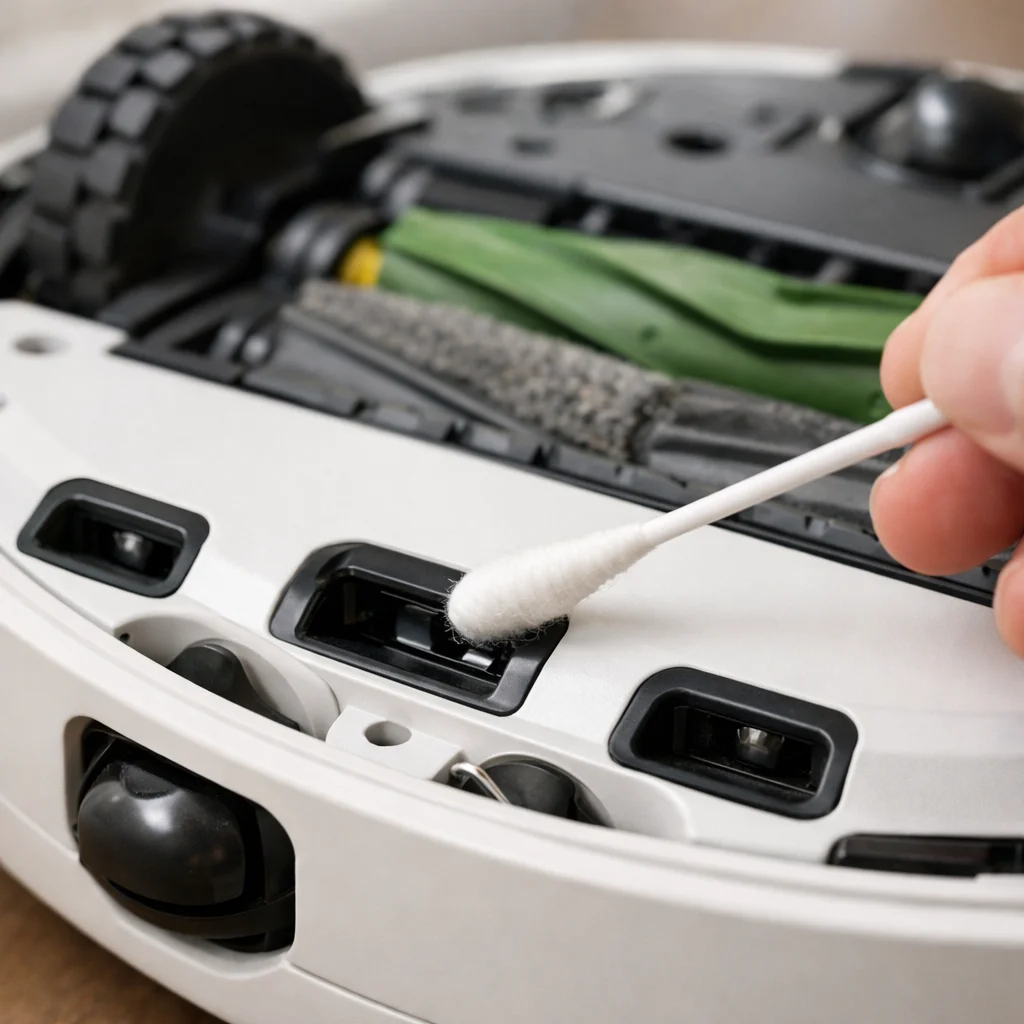
Dirty or misaligned cliff sensors are one of the least-discussed triggers for recurring Error 15 events. Community research and forums, including community-aggregated diagnostics, consistently flag cliff sensor inspection as a valuable secondary check when the error keeps returning after a reset. When a cliff sensor reads ambiguous data at boot-up, the robot's navigation system can fail its internal handshake — logging what looks like a software fault rather than a hardware one.
Corrupted Smart Maps are another hidden culprit. If you're running a room-specific cleaning job and the map file has degraded data, the Roomba j7 Error 15 bug surfaces specifically during directed cleaning — not general runs. A practical way to isolate this: switch from a "Clean Specific Room" command to "Clean Everywhere." If the robot runs without error, the map is almost certainly the problem, not the internal software.
Moving the Home Base is a surprisingly common trigger that catches users off guard. The robot expects to boot from a known positional reference. Relocate the base, and the navigation system can throw an Error 15 during initialization simply because it can't reconcile its stored map with its new starting point.
Pro Tip: Before deleting and rebuilding your Smart Map, try running one full "Clean Everywhere" session. If it completes successfully, open the iRobot app and use the map editing tools to clear only the affected room segment — this preserves your existing layout rather than starting from scratch.
These environmental factors are worth ruling out before assuming the error is purely a software issue — which leads naturally into the key takeaways that tie everything together.
The Bottom Line: Key Takeaways for Error 15
Error 15 is fundamentally a software hiccup — one that usually clears on its own but can spiral into a frustrating loop if the underlying trigger isn't addressed.
Error 15 almost always has a fixable cause, and in most cases, a 20-second hard reset is the single most effective DIY solution. According to iRobot, if the error occurs only once, no troubleshooting is required at all — intervention only becomes necessary when it persists. That distinction matters, because chasing a one-time glitch wastes time better spent elsewhere.
For quick reference, here are the four most important takeaways from everything covered so far — think of this as a condensed Roomba error messages chart for Error 15 specifically:
- Isolated occurrence: No action needed. The robot clears it automatically and resumes normal operation.
- Persistent loop: Hold the Clean button for 20 seconds to force a hard reboot. This resolves the majority of recurring cases.
- Firmware version 23.53.7: A documented bug causes Error 15 to trigger during room-specific cleaning routines. Check your firmware version in the iRobot app and apply any available updates.
- Post-battery replacement errors: Simply pressing "Clean" acknowledges the internal status change and clears the error — no further steps required.
What the previous sections on mapping conflicts and sensor interference make clear is that software and hardware rarely fail in isolation. If none of these fixes hold, the problem likely runs deeper — which is exactly where knowing when to escalate becomes just as important as knowing how to troubleshoot.
When to Contact Support or Consider an Upgrade
A factory reset is the nuclear option for Error 15 — effective, but it wipes every saved map and cleaning preference your robot has built up over time. Before going that route, exhaust every softer fix: forced reboots, app reinstalls, and clearing physical obstructions from sensors. If those steps fail and the loop persists, a factory reset can distinguish a software bug from a deeper hardware problem. If the error returns almost immediately after a full reset, you're likely dealing with something the software can't fix.
Distinguishing a motherboard failure from a stubborn firmware bug is the critical judgment call at this stage. iRobot identifies a persistent Error 15 as a sign of communication failure that may require service if reboots fail. A hardware fault — particularly on j7 and j9 models affected by early firmware rollouts — typically presents as an error that survives every reset attempt. In those cases, warranty coverage becomes relevant. If your robot is within the standard one-year limited warranty and running a problematic firmware version, iRobot support may offer a repair or replacement at no cost.
Preventive sensor maintenance is the most underrated strategy for avoiding this loop entirely. Dirty cliff sensors, dusty optical encoders, and debris-blocked charging contacts all create the kind of low-level signal noise that strains internal communication and triggers software faults. A quick wipe-down of sensors every two to three weeks keeps that noise floor low.
If your robot is out of warranty and cycling through Error 15 after a full reset, weigh repair costs against current hardware prices before committing to a service call. Consistent, simple maintenance remains the most reliable way to keep Error 15 from becoming a recurring problem.
Final Verdict: My Expert Take on Conquering Error 15
After years of maintaining a fleet of these robots, I’ve realized that Error 15 is the ultimate test of an owner's patience. It represents the intersection where sophisticated mapping software meets the messy reality of physical sensors and rolling firmware updates. While it’s easy to feel defeated when a hard reset doesn’t work the first time, my expertise suggests that persistence—and a very specific sequence of steps—usually wins. I’ve seen robots that were destined for the scrap heap come back to life just by clearing a corrupted map or scrubbing a single cliff sensor with a dry Q-tip.
My final piece of advice is to view your Roomba not just as an appliance, but as a computer on wheels. If the software (firmware) and the hardware (sensors) aren't talking, Error 15 is the inevitable result. If you’ve followed this guide and your robot still refuses to budge, don't be afraid to reach out to iRobot support, especially if you’re on the j7 or s9 models. In my experience, they are well-aware of these specific firmware loops and often have solutions that aren't listed in the public manual. Keep your sensors clean, your Wi-Fi stable, and your 'Clean' button ready—you’ve got this.
Conclusion: Getting Your Roomba Back on Track
After troubleshooting dozens of Roombas over the years—from the early 600 series to my current j9+—I can tell you that Error 15 is rarely a hardware death sentence. In my experience, it's almost always a "software handshake" issue that just needs a firm nudge to resolve. Usually, the 20-second hard reset I detailed above does the trick by clearing the corrupted cache and forcing the robot to re-initialize its navigation logic.
If you’ve tried the resets, checked your firmware, and even audited your Smart Maps, but that red ring still persists, don't lose hope. Reach out to iRobot support with your serial number and firmware version (like that 23.53.7 bug) ready. My expertise with these machines has shown me that once you clear the digital cobwebs, these robots are incredibly resilient and will get back to keeping your floors pet-hair-free in no time.