
Why a Honeywell Reset is More Than Just a Reboot

A Honeywell thermostat reset isn’t a simple restart — it’s a data wipe that can render your HVAC system unable to communicate with the controlling device.
This distinction is more important than most homeowners realize. A reboot is a power cycle: the thermostat loses power briefly, then resumes normal operation with all settings intact. A factory reset is fundamentally different — it erases stored configuration data and returns the device to its out-of-the-box state. Everything the thermostat “knows” about your specific heating and cooling system disappears.
Central to that stored knowledge is something called ISU (Installer Setup) codes — a set of configuration parameters that tell the thermostat how to talk to your furnace, heat pump, or air handler. These aren’t cosmetic preferences. They’re the operational instructions that determine whether your system runs at all. Wiping them without a record means starting blind.
Before you reset anything, consider this: According to the HVAC.com Troubleshooting Guide, approximately 75% of smart thermostat connectivity issues can be resolved by a Wi-Fi reset rather than a full factory wipe — meaning most homeowners are reaching for a nuclear option when a targeted fix would do.
The real risk isn’t the reset itself. It’s performing one without first documenting the settings you’re about to erase. That’s exactly why the next step — before you touch a single button — is recording your ISU codes.
The Critical First Step: Documenting Your ISU Codes

Before you learn how to reset a Honeywell thermostat, you need to protect the settings that keep your HVAC system running safely — because a factory reset will erase all of them.
ISU codes are the configuration language your thermostat uses to communicate with your furnace, heat pump, or air handler. They define everything from the type of heating system you have to how the reversing valve on a heat pump behaves. Without them, your thermostat may appear fully functional after a reset — display lit, schedule loaded — while your furnace sits completely silent.
As noted in a PickHVAC Technical Review, homeowners should document their specific “System Setup” (ISU) codes before performing a factory reset to avoid damaging their HVAC equipment. This isn’t a precaution reserved for complex systems — even a standard single-stage furnace setup can fail to operate if the system type code is wiped and incorrectly re-entered.
Must-Save settings before any reset:
System Type — defines whether you have a conventional, heat pump, or dual-fuel system
Valve O/B Setting — determines whether the reversing valve energizes on heating or cooling
Number of Stages — single-stage vs. two-stage heating or cooling
Fan Control — whether the fan is controlled by the thermostat or the furnace
Emergency Heat Enable — critical for heat pump installations
Pro Tip: Take a photo of each ISU screen on your cell phone before initiating any reset. Scrolling through the installer menu takes under two minutes, and those photos could save you a costly HVAC service call.
The consequence of skipping this step is frustratingly common — a thermostat that looks fixed but can’t tell your furnace when to kick on. With your ISU codes safely documented, you’re ready to approach the reset process for your specific model, starting with the modern T-Series lineup.
Resetting Modern T-Series and Smart Honeywell Models
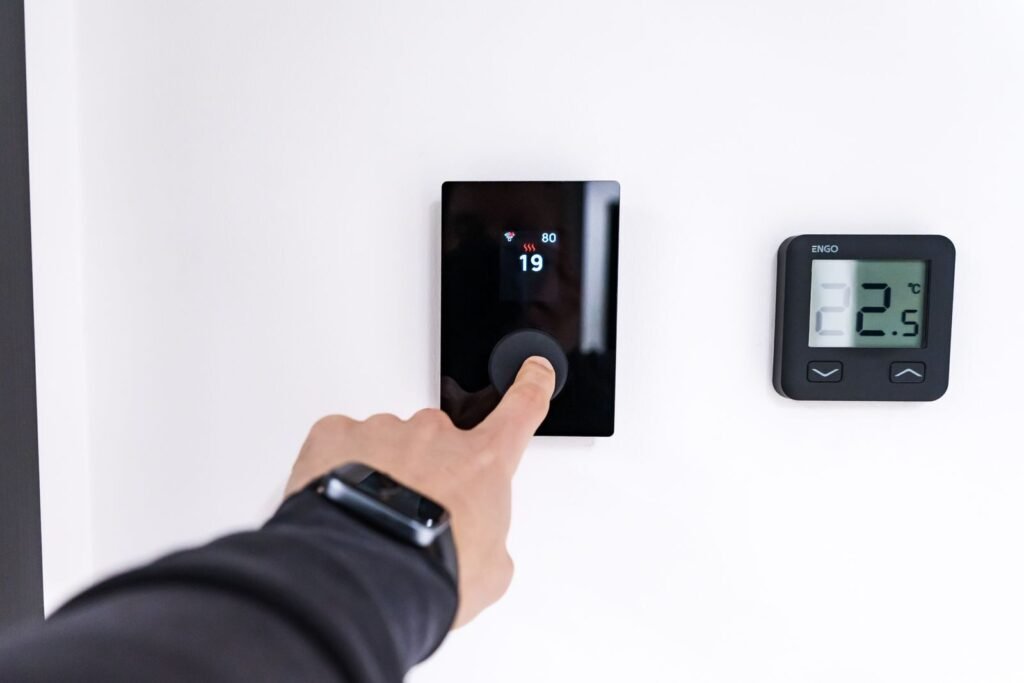
A Honeywell Home thermostat reset on T-Series and smart models follows a precise menu sequence — and skipping a single step can leave your system stuck in an incomplete reset state.
The 5-second hold on the ‘Menu’ button is the non-negotiable starting point for any T5 or T6 reset.
According to Honeywell Home Official Support, here is the correct sequence for T5 and T6 models:
Press and hold the Menu button for five seconds until the settings screen appears.
Use the arrow keys to scroll to the Reset option.
Select Factory to initiate a full wipe.
Confirm the selection when prompted.
Schedule Reset vs. Full Factory Reset. Not every situation calls for a complete wipe. A Schedule Reset clears only your programmed temperature schedules while preserving your ISU installer codes — a safer option when your HVAC wiring configuration is correct but your daily programming has become corrupted. A Factory Reset, on the other hand, erases everything, including those critical ISU settings you documented in the previous step.
Honeywell Pro Series Thermostat Reset and Factory Reset Honeywell T6 Pro are specific procedures within the T-Series lineup. If your thermostat is paired with the Honeywell Home app, a factory reset will disconnect the device from your account. Before resetting, note your Wi-Fi credentials and be prepared to re-add the thermostat as a new device inside the app. Failing to do this is a common reason smart thermostats appear unresponsive even after a successful reset.
Not every Honeywell model has a menu-driven reset option, however — which is where a different approach entirely becomes necessary.
How to Reset Honeywell Models with No Reset Button
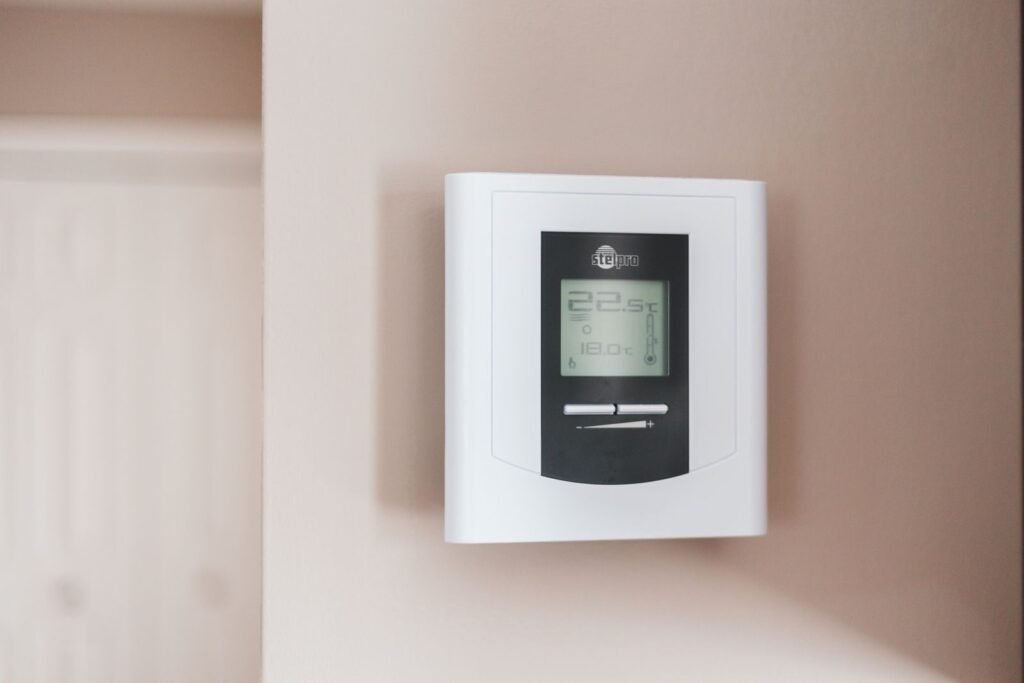
Older Honeywell 1000 and 2000 series thermostats hide their reset method entirely — there’s no button, no menu, and no digital prompt to guide you.
For these non-digital models, the Battery Flip method is the standard technique for achieving a Honeywell thermostat factory reset. According to Resideo Product Documentation, reversing battery polarity briefly clears the CMOS memory — the same low-level chip that stores your thermostat’s core settings. No digital reset button means the hardware itself becomes the reset mechanism.
Here’s how to perform the Battery Flip correctly:
Power down — Switch your HVAC system off at the breaker before touching the thermostat.
Remove the cover — Detach the thermostat face from its wall plate.
Pull the batteries — Note which direction the batteries are currently installed.
Flip both batteries — Reinsert them in reverse polarity (positive where negative was).
Wait exactly 5 seconds — This is the critical window. Five seconds is long enough to discharge the CMOS memory without damaging internal components.
Restore correct polarity — Remove the batteries and reinstall them the right way.
Reattach and power on — Return the cover and restore breaker power.
⚠️ Warning: Do not leave batteries installed in the reversed position beyond 5 seconds. Extended reverse polarity can permanently damage the thermostat’s circuitry and void any remaining warranty coverage.
In practice, this method resolves a surprising number of “dead” thermostat complaints on older units. If the screen remains blank or unresponsive after the Battery Flip, the issue may run deeper — which is exactly where the next section picks up.
Common Reset Tasks
Clear Schedule on Honeywell Thermostat — Removes only programmed temperature schedules, keeping ISU codes intact.
Honeywell Thermostat Reset Filter — Resets the filter change indicator after replacing the air filter.
Honeywell Thermostat Reset WiFi — Re-establishes the Wi-Fi connection without affecting other settings.
Troubleshooting the ‘Unresponsive’ Screen and Security Codes
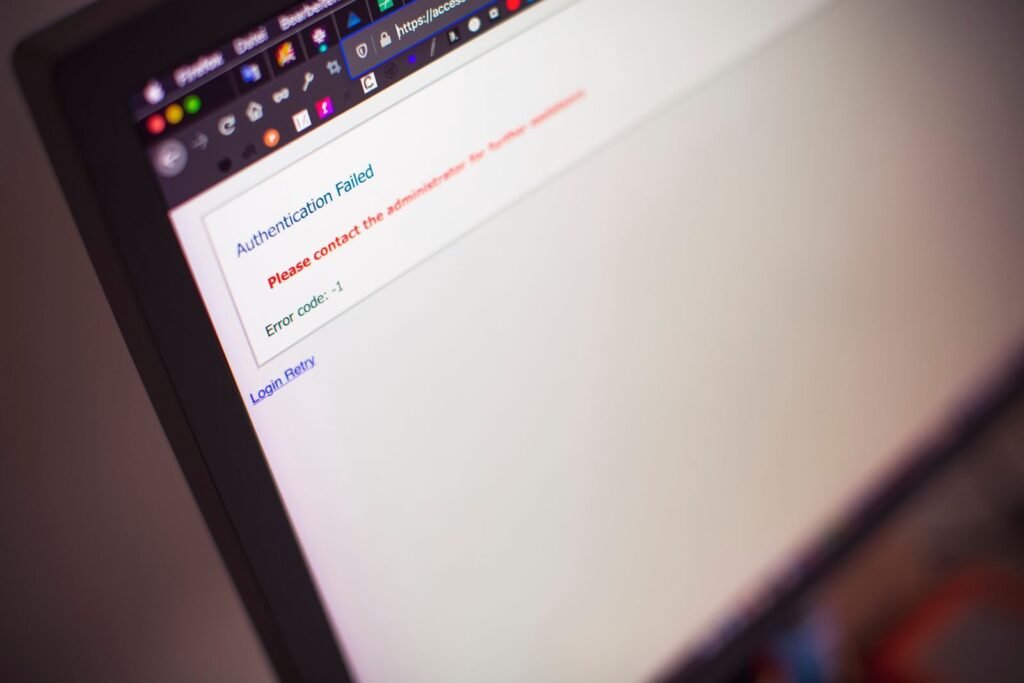
A screen that won’t respond isn’t always a sign your thermostat needs a Honeywell thermostat hard reset — sometimes the fix is simpler, and sometimes it’s more layered than it first appears.
Frozen screen vs. locked screen: these are two different problems with two different solutions.
Frozen screens point to a hardware-level issue. The display is on but unresponsive to touch — no button press registers, no menu loads. This typically signals a power disruption, a tripped circuit, or a failing control board. On high-end models like the THX9421R5021WW, a frozen screen can also result from a firmware conflict after a failed update. Before assuming the worst, check the basics first — circuit breaker, wiring connections, and battery contacts.
Locked screens are a software condition. Someone — a previous owner, an installer, or a well-meaning family member — enabled the security lock through the settings menu. The display works fine; it just won’t accept input without a PIN.
Finding a forgotten security code is where most homeowners get stuck. According to discussions on r/hvacadvice, many Honeywell models use a four-digit date code printed on the back of the thermostat faceplate as the default unlock key. Pull the unit off its wall plate, flip it over, and look for a label with a date format — that number is often your entry point back in.
When neither approach resolves the issue, stop. Repeated incorrect PIN attempts on some models can trigger a deeper lockout, and probing wiring without HVAC training risks damaging your system. At that stage, a certified technician — like the team at Campbell & Company — can diagnose whether the issue is the thermostat itself or something further upstream. Before reaching that point, though, it’s worth knowing which reset method applies to your specific situation — and that distinction matters more than most homeowners realize.
The Bottom Line: What You Need to Know
A Honeywell thermostat reset is a precision tool — used correctly, it solves configuration drift; used carelessly, it creates new problems.
Before reaching for any reset sequence, check your Wi-Fi connection first. A dropped network signal is one of the most common reasons a smart thermostat appears frozen, and a full factory reset will wipe every setting without solving the underlying issue. That’s an expensive few minutes of lost programming for a problem a router reboot could have fixed.
Always write down your ISU codes before initiating any reset. These installer setup values control how your thermostat communicates with your specific HVAC equipment. Clear them without a backup, and you risk system mismatch — a furnace that short-cycles, a fan that won’t shut off, or a heat pump running in the wrong mode.
The method you use matters just as much as the timing. According to Honeywell Home Official Support, most T-Series smart models require a “Menu” button hold sequence to access the reset function, while older units rely on the battery-flip method covered earlier — the approach most relevant when you’re figuring out how to reset a Honeywell thermostat with no reset button.
The reset isn’t a cure-all for a blank screen. It’s a configuration tool. Use it to recover from a bad setup, a locked-out installer menu, or a failed schedule sync — not as a first response to any display issue. When a reset doesn’t restore normal operation, that points toward something deeper, which is exactly where the next section picks up.
When a Reset Isn’t Enough: Next Steps

A Honeywell thermostat reset solves software drift — it cannot fix a failing transformer, a corroded C-wire, or hardware that has simply reached the end of its service life.
If your system still won’t respond after a full reset and fresh batteries, the problem almost certainly lives outside the thermostat itself. According to PickHVAC’s technical review, a persistent unresponsive state after a hard reset and battery swap typically points to the 24V power supply from the HVAC transformer — a component no amount of resetting can repair. Signs worth watching for include a display that flickers or dims even on fresh batteries, a C-wire connection that shows corrosion or looseness at the terminal block, and an HVAC system that doesn’t kick on regardless of thermostat setting.
Persistent unresponsiveness can also signal hardware end-of-life. Older thermostat models lack compatibility with modern variable-speed HVAC equipment, and no factory reset bridges that gap. If your unit is more than ten years old and showing chronic issues, a troubleshooting review may confirm that an upgrade is the more cost-effective path forward.
When to Call a Pro: If your HVAC system does not respond within 10 minutes of a completed reset, stop troubleshooting and contact a licensed HVAC technician. Repeated resets on a system with an underlying wiring or transformer fault can cause additional damage.
For homeowners weighing a modern thermostat upgrade, resources like Hyvoxa offer guidance on compatible replacements that support current smart-home standards. The bottom line: know when the reset has done its job — and when it’s time to hand the problem off to someone with a voltmeter.
There is a specific kind of frustration that sets in at 2:00 AM when your hallway is freezing, and your Honeywell thermostat screen is staring back at you with a blank, unresponsive glare. I’ve been there—standing in my socks, frantically Googling “how to reset Honeywell thermostat” while the house temperature drops. It feels like a software glitch, and the natural instinct is to treat it like a frozen smartphone: just wipe it and start over. But as I’ve learned from years of troubleshooting these units, a Honeywell “factory reset” is a high-stakes move that can solve a screen freeze while simultaneously leaving your furnace completely lobotomized.
This distinction matters because a reset isn’t just a reboot; it’s a total reconfiguration of the technical handshake between your wall and your furnace. I’ve seen countless homeowners successfully “fix” their unresponsive screen only to realize three hours later that the heat hasn’t actually kicked on because the reset wiped the specific instructions their heat pump needed to function. This guide comes from that place of hard-earned expertise—mapping out exactly how to navigate the reset process without accidentally disabling your entire HVAC system.
Conclusion: Mastering the Honeywell Reset Curve
In my experience troubleshooting home automation and HVAC interfaces, I’ve found that the reset button is the most misunderstood tool in the homeowner’s arsenal. A reset isn’t a cure-all for a broken wire or a dead transformer, and it certainly won’t bring a 20-year-old unit back from the dead. It is, however, a powerful way to clear out software “cobwebs” and connectivity hang-ups that plague modern smart homes. My personal pro rule of thumb is simple: never perform a factory reset on a weekend or a holiday unless you have your ISU codes documented in physical ink.
Ultimately, the goal of any Honeywell thermostat reset should be a functioning home, not just a functioning screen. If you’ve followed the steps for your T-Series or legacy model and still find yourself in a cold house, don’t keep pushing buttons. At that point, your expertise has reached its limit, and the risk of damaging a $10,000 HVAC system far outweighs the cost of a professional diagnostic. Use the reset as your second-to-last resort—right after checking the batteries and right before calling in the pros.