
How to Reconnect Google Home to WiFi After a Network Change
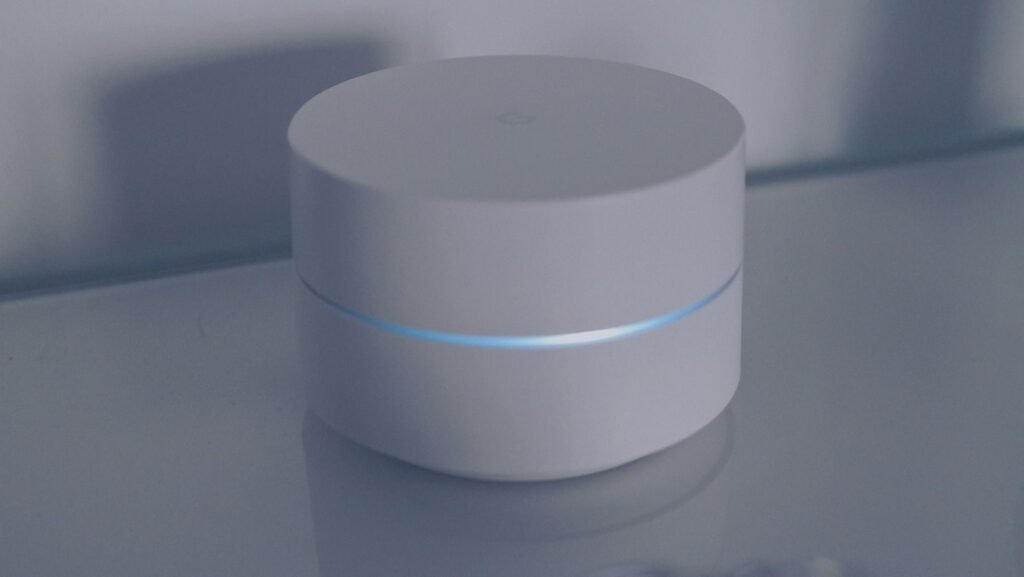
That frustrating “device not set up” or “unreachable” error on your Google Home almost always points to one root cause: your device’s Wi-Fi credentials are locked to a network that no longer exists — at least not in the form it did when you first configured it.
Google Home devices store a specific network handshake tied to your router’s credentials using WPA2/WPA3 and TLS (Transport Layer Security) protocols. This rigid design prevents ‘man-in-the-middle’ attacks. If you are replacing a router, the simplest workaround is to configure the new hardware with the exact same SSID (Network Name) and password as the old one; if they match perfectly, your devices will reconnect automatically without manual intervention. This isn’t a flaw; it’s a deliberate security design. When you change your router, upgrade your internet plan, or simply update your Wi-Fi password, that stored handshake becomes invalid. The device doesn’t quietly renegotiate — it goes dark.
This surprises most users because smartphones and laptops adapt automatically. Google Home speakers and Nest displays don’t work that way. They lock onto one set of credentials at setup and hold them until you manually intervene.
That’s where the concept of “forgetting” the network becomes essential. According to Google Help, to connect a Google Home device to a new Wi-Fi network, you must first forget the existing network in the Google Home app settings before establishing a fresh connection.
Crucial Step: There is no “reconnect” button in the app — learning how to connect Google Home to WiFi properly means treating the process as a full re-setup, not a quick credential swap.
The next section walks through exactly how to do that, step by step.
How to Change WiFi on Google Home Mini and Nest Devices
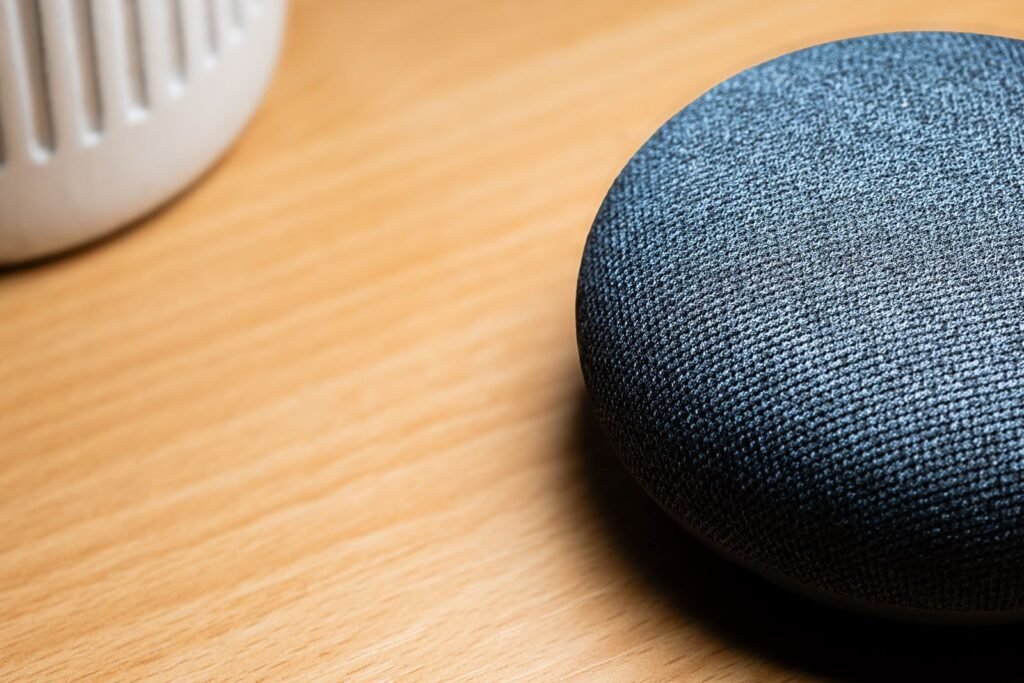
To change Google Home WiFi settings, you don’t update credentials in place — you wipe the old network and pair fresh, just like a first-time setup.
The “forget and re-pair” method is the only reliable way to move a Google Home or Nest device to a new network.
Here’s the standard process:
Open the Google Home app and tap the device you want to move.
Tap the gear icon to open Settings, then select Device information.
Tap Wi-Fi, then Forget this network — per Google Help, this fully clears the stored credentials.
Return to the app’s home screen and tap the “+” icon in the top corner.
Select Set up device, then New device, and walk through setup as if the device just came out of the box.
Why forget first? Skipping this step often causes the app to cache old network data, leading to the same connection error on loop.
Note for Google Home Mini users: The Mini lacks a screen, so visual confirmation isn’t available during setup. If the status light pulses orange after forgetting, the device is ready to pair — don’t skip waiting for that signal before tapping “Set up device” in the app.
Newer Nest Hub models generally handle this process more smoothly thanks to onscreen prompts, but the core steps remain identical.
One caveat worth noting: this process assumes your router is broadcasting normally and your phone is already connected to the target network. If setup still stalls at the scanning stage, your router’s frequency settings may be the real obstacle — and that’s a surprisingly common issue worth examining closely.
The 2.4GHz Trap: How to Connect Google Home to WiFi on Modern Routers
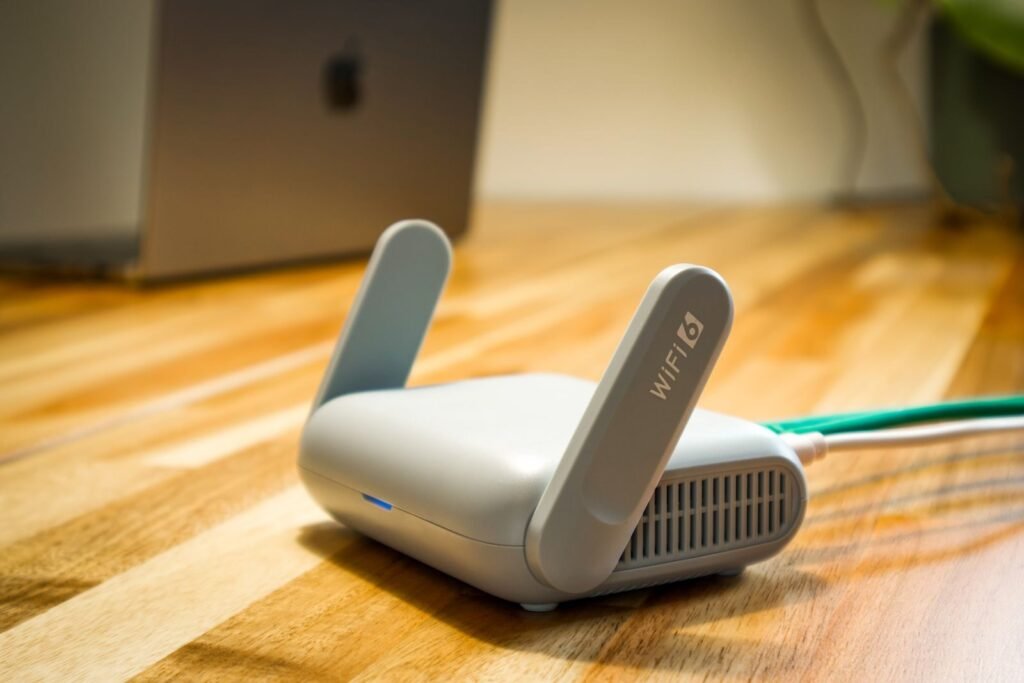
One of the most overlooked reasons people struggle to connect Google Home to WiFi has nothing to do with the device itself — it’s a frequency mismatch hiding inside their router.
Google Home hardware primarily operates on the 2.4GHz band. According to Asurion, smart home devices like Google Home are often only compatible with 2.4GHz networks, which deliver better range through walls than the faster but shorter-range 5GHz band. That trade-off matters during setup more than at any other moment.
The problem most people hit is called band steering. Many modern routers broadcast both 2.4GHz and 5GHz signals under a single, unified network name — say, “HomeNetwork” — and automatically shuffle devices between them. Your phone might be sitting on the 5GHz band when you launch the Google Home app, which means the credentials it tries to hand off to your speaker simply won’t translate. The speaker is listening on a frequency the phone isn’t broadcasting on.
To work around this, temporarily log your smartphone into the dedicated 2.4GHz network before starting the pairing process. Most routers let you split these bands in the admin settings, often labeling them “HomeNetwork” and “HomeNetwork_5G.” Once you’re on the right band, keep your phone close to the speaker. As iTechnology Australia notes, placing your device near the router during setup helps avoid connectivity challenges during that critical frequency handshake.
Pro Tip: Stay within 3–5 feet of your Google Home during initial pairing. Distance weakens the local device-to-device signal and can interrupt the setup mid-transfer — leaving you with a half-configured speaker and no clear error message explaining why.
Even after solving the band steering issue, some users find that setup still fails inexplicably. That’s often a sign something else is intercepting the local connection — and that’s exactly what the next section addresses.
Why Your VPN Blocks the Reconnection to Google Home
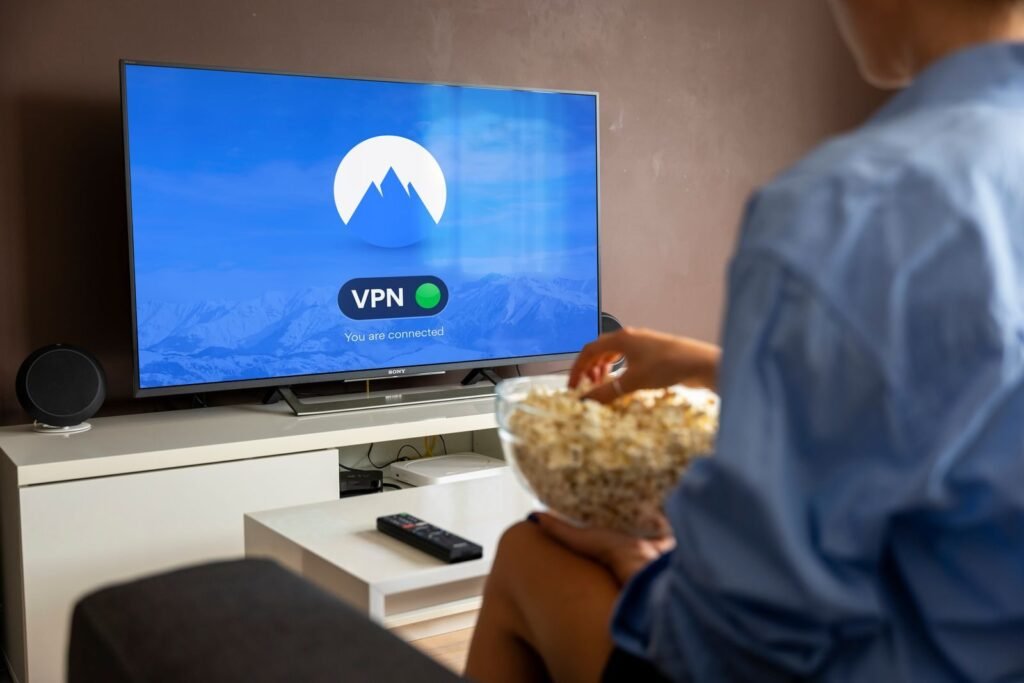
A VPN running silently on your phone is one of the most common — and least obvious — reasons Google Home setup fails, even when everything else looks correct.
During setup, your Google Home or Nest speaker briefly creates its own temporary local hotspot. Your phone connects directly to that hotspot so the Google Home app can pass your WiFi credentials across to the device. This device-to-device communication happens entirely on a local network — no internet required. It’s a short, isolated handshake between your phone and the speaker.
A VPN disrupts that handshake. When a VPN is active, it routes your phone’s traffic through an encrypted tunnel to a remote server. That tunnel blocks or reroutes the local network traffic the setup process depends on, making it impossible for your phone to “see” the speaker’s temporary hotspot. The app stalls, times out, or throws a vague “device not found” error — with no explanation of why.
According to Google Help, disabling a VPN on your mobile device is a required troubleshooting step if the Google Home app cannot find the speaker during setup.
The fix: Before starting setup — whether you’re configuring a new device or figuring out how to change WiFi on Google Home Mini — turn off any VPN apps, ad-blocking apps, or DNS filtering tools running on your phone. Once the speaker successfully connects and you see the confirmation screen, re-enable your VPN. Once the credentials are stored, your security tools won’t interfere.
If disabling your VPN doesn’t resolve the issue, the problem may run deeper — and that’s where a full “device not found” loop can set in.
Troubleshooting the Device Not Found Loop: Set Up a New Internet Connection for Google Nest
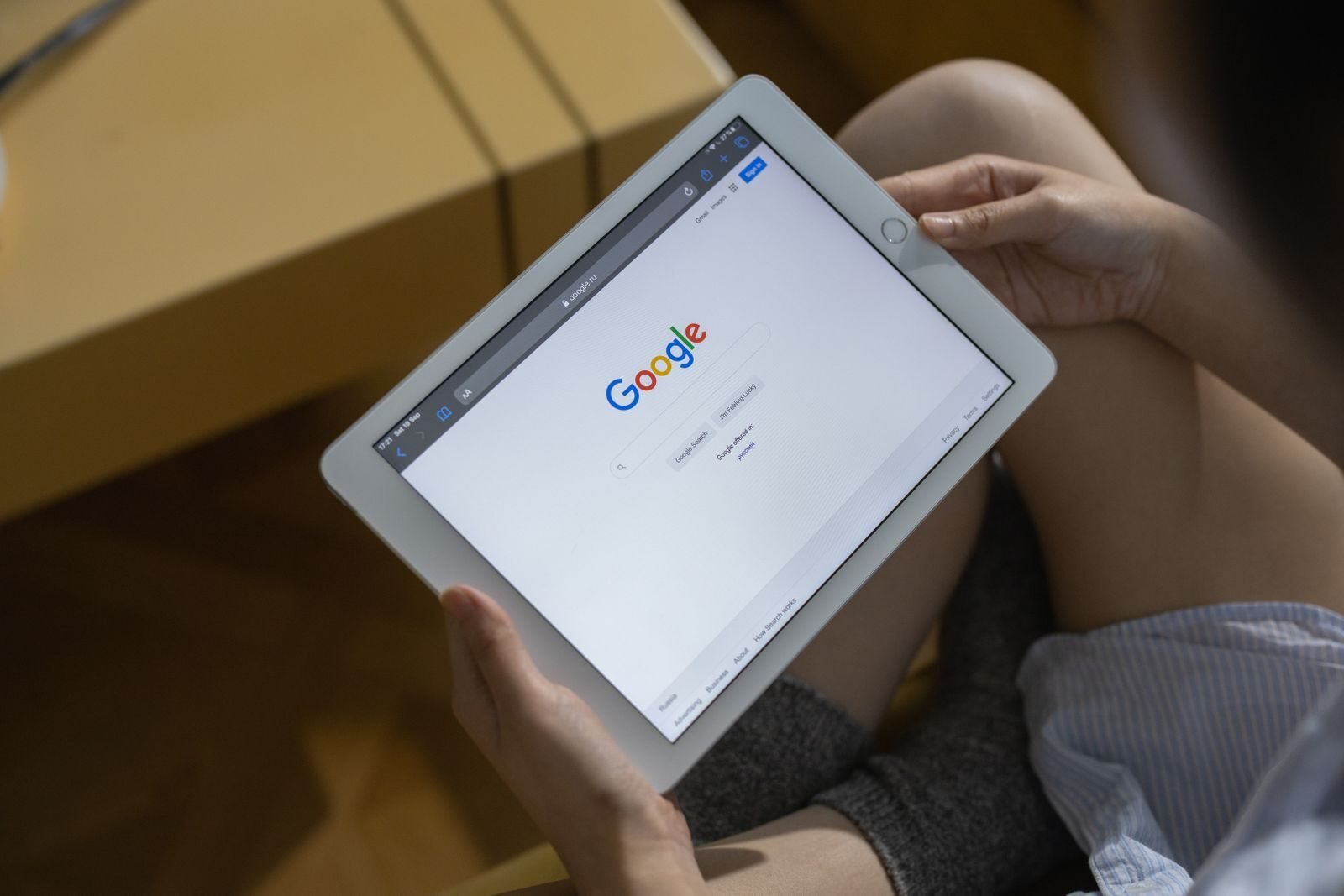
When the Google Home app keeps cycling through “searching for device” without success, the problem has likely moved beyond a simple settings fix. Knowing how to reconnect Google Home to WiFi after repeated failures means understanding when the app can’t help you anymore — and what to do instead.
If the app can’t find your device, the fix is physical, not digital.
Factory Data Reset (FDR) is the nuclear option, but sometimes it’s the only one that works. According to Google Help, if a device won’t automatically prompt for a new network, a factory reset is required to initiate a fresh setup. Reset button locations vary by model:
Original Google Home: Press and hold the microphone mute button on the back for roughly 15 seconds until you hear a confirmation sound
1st Gen Google Home Mini: Hold the FDR button on the bottom of the device for 15 seconds
2nd Gen Google Nest Mini: Press and hold the center of the device for 10 seconds
Google Nest Audio: Hold the mute button for 5 seconds until lights pulse orange
⚠️ Warning: A factory reset permanently wipes all device settings, routines, and room assignments. Reassigning the device in the app afterward is required.
App cache corruption is another silent culprit. On Android, go to Settings > Apps > Google Home > Storage > Clear Cache. On iOS, deleting and reinstalling the app achieves the same result.
AP Isolation is a router-level setting worth checking if nothing else resolves the loop. When enabled, it prevents devices on the same network from communicating with each other — which completely blocks the setup handshake. Log into your router admin panel and search for “AP Isolation” or “Client Isolation” under the wireless settings, then disable it.
Once these deeper blockers are cleared, the path to a stable connection becomes much more straightforward — and the next section pulls the key fixes together into one actionable reference.
The Bottom Line: Quick Fixes for Google Home WiFi Issues
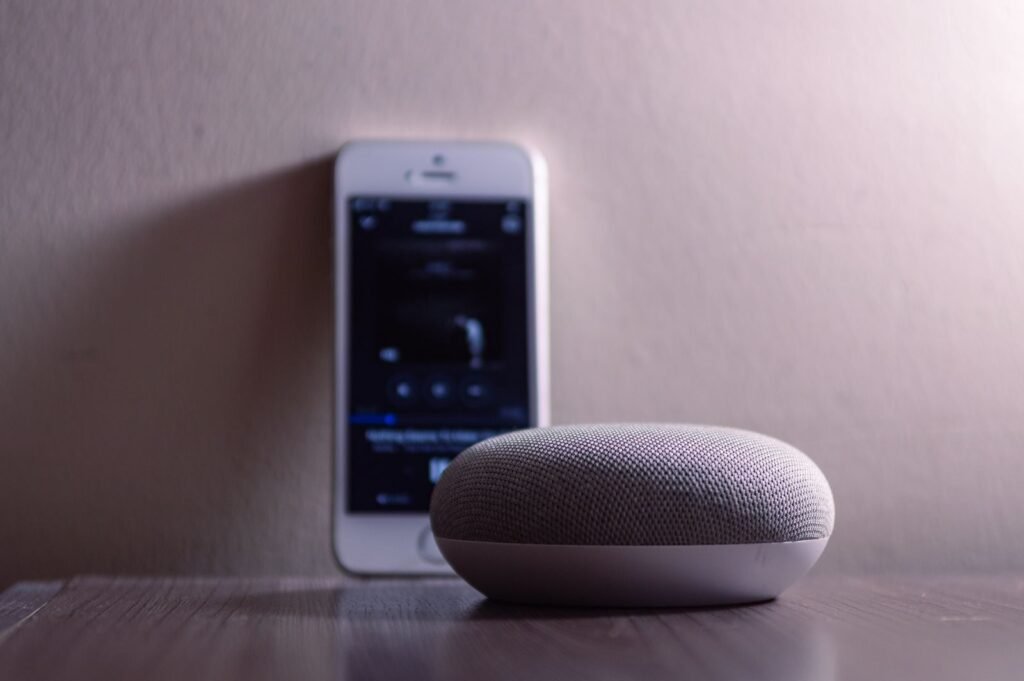
Whether you’re troubleshooting a full-size speaker or searching for “google home mini how to connect to wifi,” the same four fixes resolve the vast majority of setup failures.
Here’s what the evidence points to as the most reliable sequence:
Forget the old network first. Before attempting any new connection, open the Google Home app and explicitly remove the previously saved network. Skipping this step leaves the app trying to reconcile conflicting credentials, which stalls the process before it begins.
Switch your phone to 2.4GHz. According to Asurion, ensuring your phone is specifically on the 2.4GHz band during the setup handshake significantly increases success rates. Your Google Home device broadcasts its own temporary hotspot on that band, and a 5GHz phone connection will simply miss it.
Disable your VPN. As covered earlier, even a background VPN quietly blocks the local network communication the app depends on. Turn it off before you launch setup, then re-enable it once the device is connected.
Stay within 5–10 feet of the router. Distance introduces signal instability during the initial pairing window — a window that’s surprisingly short.
Bold reality check: most Google Home connection problems aren’t hardware faults — they’re environmental and configuration issues that a few deliberate setting changes can solve in under five minutes.
Once these fixes are in place, the conversation shifts from troubleshooting individual devices to something bigger: maintaining a network environment where your entire smart home stays reliably connected long-term.
Maintaining a Stable Smart Home Connection with Hyvoxa
Getting your Google Home speaker online is genuinely finicky — but once it connects, the real work begins. A stable, well-managed network is the true foundation of every reliable smart home.
Setup frustrations tend to fade quickly. What lingers are the slow response times, dropped commands, and phantom disconnections that stem from a network that was never properly optimized in the first place. Whether you needed to troubleshoot a device loop, adjust your router’s band settings, or essentially set up a new internet connection Google Nest recognized from scratch, every step in this guide points toward the same underlying truth: your WiFi environment matters more than any individual device setting.
Once the connection is established and firmware updates are applied, moving your speaker to its permanent location completes the setup — but that should mark the beginning of regular network maintenance, not the end. Auditing your band settings and running a speed test every few months catches problems before they become frustrating outages.
Hyvoxa helps users cut through the noise around smart home optimization, offering practical guidance on network configuration, device compatibility, and long-term performance management. If today’s troubleshooting session revealed deeper gaps in your home network setup, there’s more useful reading ahead. Explore Hyvoxa’s guides to build a reliably connected smart home.
Setting up a smart home often feels like a “set it and forget it” endeavor, but my experience has taught me otherwise. The most reliable systems I’ve ever managed weren’t just about buying the best hardware; they were about maintaining the network environment those devices live in. When your Google Home stays connected, it feels like magic. When it doesn’t, it’s a reminder that we are still in the early days of home automation where a little bit of networking “know-how” goes a long way.
Don’t let a single connection loop sour your experience with voice assistants. By mastering these four core fixes—clearing old credentials, respecting the 2.4GHz band, pausing your VPN, and knowing when to hit the factory reset—you’re not just fixing a speaker; you’re building a more resilient digital home. At Hyvoxa, we believe that technology should serve you, not the other way around. Once you’ve stabilized your connection, you can finally get back to what matters: a home that actually listens., but my experience has taught me otherwise. The most reliable systems I’ve ever managed weren’t just about buying the best hardware; they were about maintaining the network environment those devices live in. When your Google Home stays connected, it feels like magic. When it doesn’t, it’s a reminder that we are still in the early days of home automation where a little bit of networking “know-how” goes a long way.
Don’t let a single connection loop sour your experience with voice assistants. By mastering these four core fixes—clearing old credentials, respecting the 2.4GHz band, pausing your VPN, and knowing when to hit the factory reset—you’re not just fixing a speaker; you’re building a more resilient digital home. At Hyvoxa, we believe that technology should serve you, not the other way around. Once you’ve stabilized your connection, you can finally get back to what matters: a home that actually listens.
Setting up a smart home often feels like a “set it and forget it” endeavor, but my experience has taught me otherwise. The most reliable systems I’ve ever managed weren’t just about buying the best hardware; they were about maintaining the network environment those devices live in. When your Google Home stays connected, it feels like magic. When it doesn’t, it’s a reminder that we are still in the early days of home automation where a little bit of networking “know-how” goes a long way.
Don’t let a single connection loop sour your experience with voice assistants. By mastering these four core fixes—clearing old credentials, respecting the 2.4GHz band, pausing your VPN, and knowing when to hit the factory reset—you’re not just fixing a speaker; you’re building a more resilient digital home. At Hyvoxa, we believe that technology should serve you, not the other way around. Once you’ve stabilized your connection, you can finally get back to what matters: a home that actually listens.
Frequently Asked Questions
Why is my Google Home not connecting to Wi-Fi?
Most failures are caused by a 5GHz frequency mismatch, an active VPN on your phone, or the device attempting to use cached credentials from a previous network.
How do I reconnect my Google Home to Wi-Fi after a password change?
You must ‘Forget’ the network in the Google Home app settings under ‘Device Information’ and then perform a new setup to input the updated password.
Can I change the Wi-Fi on a Google Home Mini without resetting it?
Only if the device is still connected to its original network. If the old network is gone, a physical factory reset is required to trigger setup mode.