
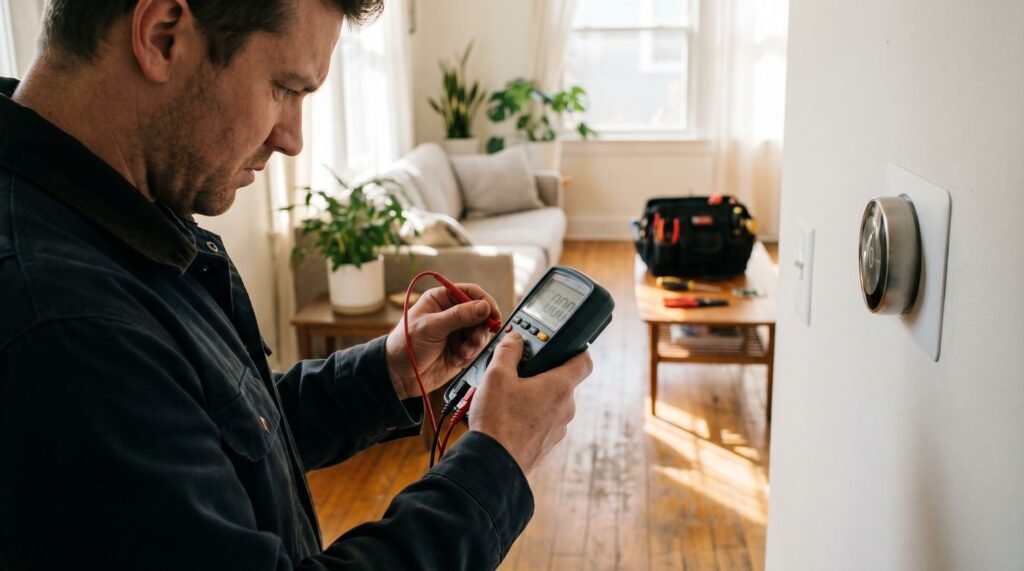
Why Your Nest Thermostat Won’t Stay Connected (and How to Fix It for Good)
The Real Reason Your Nest is Offline There is nothing more frustrating than coming home after a long day, expecting a perfectly pre-cooled living room, only to find your Nest Thermostat displaying that dreaded “Offline” icon. As someone who has managed smart home setups for over a decade, I’ve felt that specific sting of a “smart” device making life harder instead of easier. You check your router, you toggle your phone’s Wi-Fi, and yet the thermostat remains a stubborn, uncommunicative puck on the wall. This isn’t just a minor tech glitch; it’s a breakdown of the comfort your home is supposed to provide. After troubleshooting hundreds of these units—from the original 2nd Gen Learning Thermostats to the sleek new 4th Gen models—I’ve learned that the “fix” is almost never as simple as re-entering a password. It usually involves a deeper understanding of how the Nest balances power and connectivity. Technical documentation confirms that if your battery voltage drops below the 3.6V threshold, the Nest will disable its Wi-Fi radio to conserve power. Furthermore, for stable connectivity, your signal strength should ideally be above 50 on the device’s internal scale (or better than -60 dBm). If you don’t address these underlying power delivery or signal interference issues, you’ll be back on this same ladder next week. This guide is built on those hard-learned lessons, designed to get you back online and ensure you stay there for good. That spinning “Offline” icon in your Google Home app isn’t just a connectivity glitch — it’s often a symptom of deeper hardware and power dynamics most troubleshooting guides never mention. When homeowners search for how to connect Nest thermostat to WiFi after a dropout, they typically assume a wrong password or a router hiccup is the culprit. In practice, the issue runs deeper. Nest thermostats draw power directly from your HVAC system’s wiring, and when that power delivery is inconsistent, the Wi-Fi radio is often the first thing the thermostat sacrifices to conserve energy. Your Nest going offline may have nothing to do with your network at all. This is where Power Sharing becomes critical to understand. If your system lacks a dedicated C-wire (common wire), the thermostat steals small amounts of power from the heating and cooling wires during operation — a process that can leave the battery chronically undercharged. According to Google Support, Nest thermostats require a minimum battery voltage of 3.7V to successfully download and install software updates over Wi-Fi. Drop below that threshold, and disconnections become a frustrating routine. Connectivity, in other words, is a hardware-software handshake — not just a password problem. The sections ahead break down the specific fixes for each Nest generation, because the solution for a 2020 Nest Thermostat looks quite different from what’s needed for a Nest Learning Thermostat. Updating Wi-Fi Settings Across Different Nest Generations Knowing which steps to follow for your specific Nest model is the difference between a two-minute fix and a frustrating loop of failed reconnection attempts. The wrong approach here — triggering a full Nest thermostat factory reset — will wipe your heating and cooling schedules entirely, and it’s almost never necessary just to update a network. Nest Thermostat (2020 model). This entry-level device handles network changes almost entirely through the Google Home app. Open the app, tap your thermostat, go to Settings → Wi-Fi → Change Network, then follow the on-screen prompts. No physical menu navigation required. Nest Learning Thermostat (2nd/3rd Gen) and Nest Thermostat E. These models require you to work directly on the device ring. Press the ring to open the Quick View menu, scroll to Settings → Reset → Network, then navigate to Wi-Fi to select your new network. One critical caveat: both the Nest Thermostat E and 2nd generation Nest Learning Thermostat are strictly limited to 2.4 GHz Wi-Fi bands. If your router recently switched to a 5 GHz-only broadcast, that alone can explain a persistent offline status. 4th Gen Nest Learning Thermostat. Google’s newest generation supports both 2.4 GHz and 5 GHz bands and is configured primarily through the Google Home app, similar to the 2020 model — but with richer on-device display options for confirming connection status. “Change Network” vs. “Reconnect.” These two options are not interchangeable. Reconnect attempts to re-establish a link to the network already stored in memory — useful after a router reboot. Change Network clears the saved credentials and prompts you to select and authenticate with a new one. Use Change Network any time your network name or password has been updated. The distinction matters more than most guides acknowledge, and choosing the wrong option can send you in circles before you ever touch a reset option — which is exactly where the next section picks up. When to Use a Nest Thermostat Factory Reset A factory reset is a last resort — not a first step — and knowing the difference can save you hours of unnecessary setup work. Restart vs. Factory Reset: A restart simply reboots the thermostat’s software, like cycling power on a router. A factory reset wipes everything — schedules, preferences, Wi-Fi credentials, and account links — returning the device to its out-of-box state. As Google Support confirms, a factory reset removes all personal settings and requires you to re-add the device to the Google Home or Nest app from scratch. That means you’ll also need to know how to set up Google Nest wifi credentials again during the reconnection process. When a reset is genuinely necessary: The clearest scenario is inheriting a thermostat from a previous homeowner. If the device is still linked to someone else’s account, no amount of Wi-Fi troubleshooting will resolve the connection problems — you need a clean slate. Persistent offline loops after correct credentials are entered are another legitimate trigger. The real cost of resetting: Your heating and cooling schedules disappear entirely. If you’ve spent weeks fine-tuning a temperature routine, photograph every schedule screen before proceeding. Pro Tip: Export or manually document your schedule settings before initiating any
Why Your Nest Thermostat Won’t Stay Connected (and How to Fix It for Good) Read Post »