
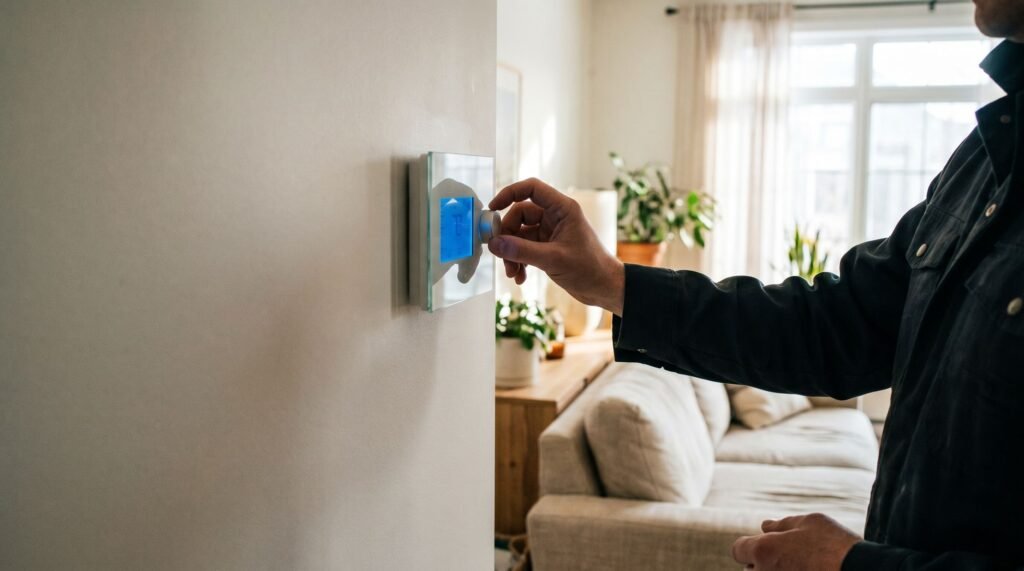
How to Reset Nest Thermostat and Fix Common Issues
The Critical Difference Between Restarting and Resetting Knowing how to reset a Nest thermostat correctly can mean the difference between a two-minute fix and accidentally wiping out months of learned scheduling data. Before you touch a single button, it’s worth understanding that Google offers three distinct reset types — and choosing the wrong one has real consequences. According to Google Nest Help, these options break down as follows: The factory reset is the only option that fully unlinks a thermostat from its previous owner. As PCMag notes, “if you’re moving out or want to give your thermostat to someone else, you should always perform a factory reset to remove your personal settings.” Skip this step, and the next owner will hit an “already registered” error that blocks setup entirely. If a frozen or unresponsive screen is the symptom you’re dealing with, a manual restart is the logical first move — and that’s exactly where to begin. How to Force a Manual Restart When the Screen is Frozen A frozen Nest thermostat screen isn’t a sign of permanent failure — it’s usually a software hang that a physical override can fix in under a minute. A black screen or an unresponsive ring almost always means the software has locked up, not that the hardware is broken. Before assuming you need a full factory reset or a new Nest thermostat installation, this manual restart should be your first move. Common symptoms that signal a freeze include: When you spot any of these, here’s how to force the reboot: Stop and do nothing once the Nest logo or home icon appears. Interrupting the reboot cycle mid-process can cause incomplete restarts that leave the device in the same frozen state. The reboot typically takes 30 to 90 seconds. What’s happening underneath is the thermostat cycling its software processes and reinitializing its connection to your HVAC system. If the screen comes back responsive and the display shows your set temperature, the restart worked. However, if the freeze returns within a few hours or the ring press produces no response at all, a deeper issue may be at play — and battery voltage is often the hidden culprit. The 3.7V Rule: Why Your Reset Might Be Failing Most failed factory resets trace back to a single, overlooked hardware requirement: the thermostat doesn’t have enough power to finish the job. When you decide to restart or reset a Nest thermostat, a restart is a lightweight operation — the device just reboots its software. A factory reset is an entirely different demand. The process rewrites firmware, clears stored schedules, and purges Wi-Fi credentials, all of which require sustained power. According to Google’s Nest hardware specifications, the battery must hold a charge of at least 3.7V for the reset to complete successfully. Battery voltage below that threshold is the most common reason a reset stalls, loops, or never finishes. To verify your charge level before attempting anything, navigate to Settings → Technical Info → Power on the thermostat display. The “Vbat” reading is your battery voltage. If it reads below 3.7V, proceed with charging first. Pro Tip: Never initiate a factory reset on a low battery. If power drops mid-process, the firmware rewrite can corrupt partially — leaving the thermostat in an unresponsive state that’s significantly harder to recover from than the original problem. That covers resets on a mounted, powered unit. Things get more complicated when the thermostat has already been removed from its base — a situation that introduces a different set of challenges entirely. Resetting a Nest Thermostat That’s Already Off the Wall A Nest thermostat that’s been removed from its base presents a unique obstacle: you simply cannot manually reset a Nest thermostat through the app once it loses its Wi-Fi connection. The Nest app requires an active network link to send commands — no connection, no remote control. That dependency leaves many users stuck, particularly when dealing with a device left behind by a previous homeowner. The only reliable paths forward both require getting power back to the display. The USB Method is the most practical option when the base is unavailable. Google’s support documentation confirms that users often need to charge the display via a USB port before attempting a full reset if the unit has been off the wall for an extended period. Plug a micro-USB or USB-C cable (depending on your model) into the display and connect it to a powered source. Once the screen activates, you can navigate to Settings → Reset → All Settings without the base being involved at all. The Re-mount Method is the more permanent fix. Snapping the display back onto a powered base restores both battery charging and the reset menu simultaneously — and it gets the device ready for immediate reconfiguration once the reset completes. Inherited devices deserve a specific note. If a previous homeowner’s account is still linked, a factory reset is the only way to wipe that association. The app alone cannot override account ownership on a disconnected device. Once wiped, the thermostat becomes a blank slate ready to link to a new account — which is precisely where connectivity and PIN troubleshooting becomes the next hurdle. Troubleshooting Persistent Connectivity and PIN Issues Connectivity failures and forgotten PINs are two of the most frustrating Nest problems — and each has a targeted fix that stops well short of a full wipe. A forgotten PIN doesn’t require a factory reset. The Nest app lets you recover or reassign access credentials remotely, which means the thermostat’s schedule, energy history, and preferences stay completely intact. Open the app, navigate to the device settings, and follow the account recovery prompts to restore access in minutes. The situation changes when the connection itself is broken. A persistent “Offline” error often has nothing to do with your router and everything to do with corrupted network credentials stored on the device. This is where the Network Reset acts as a surgical strike. As noted in Google Nest Help,
How to Reset Nest Thermostat and Fix Common Issues Read Post »