
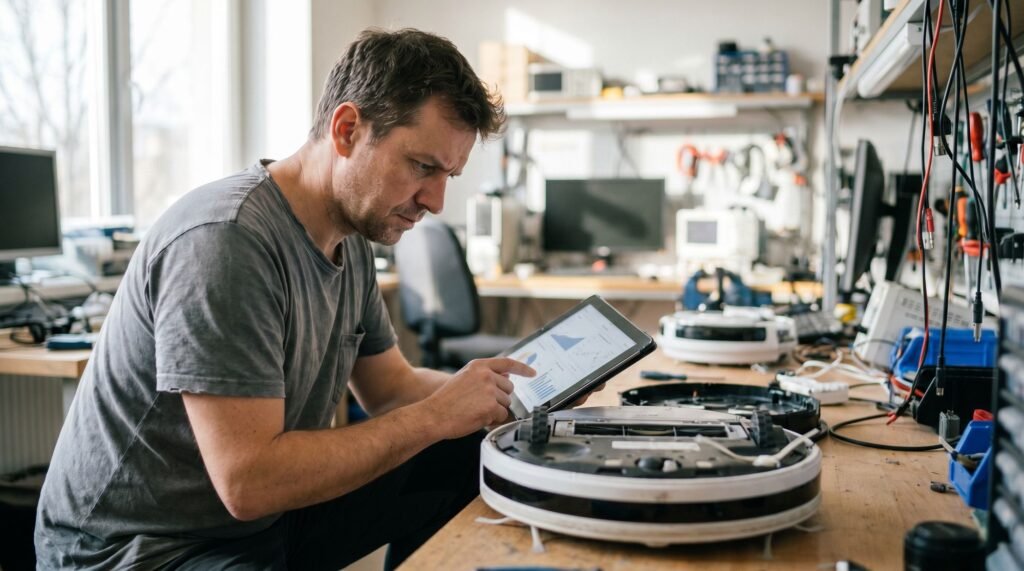
Roomba Error 15: How to Fix a Robot Stuck in a Loop
Error 15 often appears as a red light ring while the robot stays parked and unresponsive. What Error 15 Actually Means for Your Roomba Roomba Error 15 is one of the most misleading fault codes in the lineup — the manufacturer says it's already fixed, yet your robot sits there, going nowhere. According to iRobot's official support documentation, Error 15 is classified as an "internal error" that the robot has already resolved on its own. The guidance is essentially: don't worry about it, press clean, and move on. For a significant portion of users, that advice works exactly once — and then the error returns. The battery swap trap catches a lot of owners off guard. iRobot acknowledges that reinserting or replacing the battery will trigger a one-time Error 15 signal upon power-up as expected behavior. That's an important distinction. A single occurrence after a battery change? Normal. A robot that cycles through the error on every attempted clean cycle, or refuses to move at all? That's a different problem entirely. Commonly affected models span a wide range — from the 960, i-series, and s-series through to the newer j-series — which suggests the underlying cause isn't limited to one hardware generation. Knowing whether you're dealing with a one-time glitch or a persistent loop is the critical first step. As it turns out, on j7 and j9 models especially, the answer often lives inside the software itself — and a specific firmware version appears to be at the center of it. The Firmware Bug: Why Your j7 or j9 is Failing A specific firmware release is a documented root cause of Error 15 on newer Roomba models — and knowing that changes your entire troubleshooting approach. Software version 23.53.7 has been identified as a primary culprit. iRobot has confirmed that this update triggers Error 15 specifically on j7 and j9 models during directed room cleaning missions. The critical detail here is the type of cleaning task involved: robots running 23.53.7 fail almost exclusively when sent on a Directed Room mission, while a standard Clean Everywhere command often completes without issue. That distinction alone tells you the bug lives in the mission-routing logic, not the hardware. Firmware version 23.53.7 is a confirmed trigger for Error 15 during directed room cleaning. As Appuals explains, "Error 15 on the iRobot often indicates that a crucial firmware module either didn't load correctly or is locked in a loop." In practice, what happens is the robot attempts to load a specific navigation module tied to room-level mapping, that module stalls, and the system throws Error 15 rather than proceeding with incomplete instructions. Symptoms specific to the 23.53.7 firmware bug include: Error 15 fires only during Directed Room jobs, not whole-home cleaning The robot returns to base immediately after the error — no movement attempted Repeated attempts produce the same result without variation The iRobot Home App shows the mission as failed with no partial progress logged To check whether you're running the affected version, open the iRobot Home App, tap your robot's name, select Settings, then scroll to About. Your firmware version appears under the software heading. If 23.53.7 is listed, a simple app reboot won't resolve this — which is exactly why knowing how to hard reset Roomba correctly becomes the necessary next step. How to Hard Reset Your Roomba to Clear the Error A hard reset is the most reliable first move when Error 15 appears — and doing it correctly means more than just cycling the power. The app reboot won't cut it here. A soft restart through the iRobot app only refreshes the connection layer; it leaves the firmware initialization state and temporary cache intact. What you need is a full hardware-level reboot that forces the Roomba to reload its core processes from scratch. Holding the Clean button for 20 seconds forces a full reboot that clears the corrupted cache. According to Appuals, a hard reboot is performed by holding the Clean button for 20 seconds until you hear a tone and the light ring resets. This clears the temporary cache that gets corrupted during a failed firmware cycle — the exact condition driving most Error 15 loops. Steps to perform a hard reset: Place the Roomba on a flat surface and leave it completely still. Press and hold the Clean button for a full 20 seconds. Wait for the audible chime and light ring change before releasing. Allow the robot to sit undisturbed for 90 seconds while it reinitializes. ⚠ Warning: Do not move the robot during the reboot process. Interrupting the cycle mid-reinitialize can deepen the initialization failure. Model-specific note: On the s-series, the button press sequence is the same, but the light ring behavior differs — expect a brief white pulse rather than a full spin. On the i-series, the ring sweeps clockwise before going dark. Both confirm a successful cache clear. If you're working through Roomba 960 error 15 troubleshooting, this hard reset step applies — though the 900-series has some additional quirks worth addressing separately, which the next section covers in detail. Troubleshooting the Roomba 960 and 980 Series The 900 series presents its own distinct Error 15 patterns — and treating it exactly like a j7 or j9 will send you down the wrong path. The 960 and 980 are especially vulnerable to communication-based failures. According to iRobot's support documentation, when an iRobot internal error 15 appears on every single cleaning job in the 900 series, it signals a persistent communication failure — not a one-off glitch. That distinction matters because it shifts the fix from a simple reboot toward a deeper diagnostic process. Battery contacts are a frequently overlooked culprit on the 980. Oxidation or debris on the contacts between the battery and the chassis can interrupt the low-level handshake that happens at startup. A common pattern is for this to appear as a software error when the real problem is physical. Removing the battery, cleaning the contacts with a dry cloth, and
Roomba Error 15: How to Fix a Robot Stuck in a Loop Read Post »