
Why a Simple Reboot Isn’t Always Enough
There is a specific kind of sinking feeling that happens when you check your Ring app to see who’s at the door, only to be met with a spinning “Connecting…” wheel. I’ve lived through that frustration—missing a time-sensitive delivery or, worse, seeing a purple-tinted video feed that makes your front porch look like a scene from a sci-fi movie. When your smart home tech stops being “smart,” it’s easy to feel like you’ve wasted your investment.
After years of troubleshooting smart home hardware and helping dozens of homeowners regain control of their security systems, I’ve learned that a simple “reboot” is often just a temporary band-aid. Sometimes, the internal cache becomes so cluttered or the firmware so fragmented that only a true factory reset will fix the underlying glitch. In this guide, I’m sharing the exact protocols I use to restore Ring devices to peak performance, from locating hidden buttons to bypassing the dreaded “account locked” error.
Knowing how to reset Ring doorbell devices the right way can save you hours of frustration — because not every fix requires the same approach.
A soft reset and a factory reset are not interchangeable. A soft reset, often called a power cycle, simply restarts the device to clear temporary cache and refresh the connection. Crucially, it leaves all your settings, Wi-Fi credentials, and linked accounts completely intact. Think of it as the equivalent of restarting a sluggish laptop — quick, harmless, and reversible.
A factory reset is an entirely different operation. As Ring Support notes, “a hard reset restores the factory settings… by wiping the saved configuration.” That means your device returns to the exact state it was in when it left the warehouse — no account links, no Wi-Fi, no custom motion zones.
Warning: A factory reset is destructive and cannot be undone.
Choosing the right method matters. A soft reset works well when your doorbell is responding slowly or dropping its connection intermittently. A factory reset becomes necessary in two specific situations: you’re preparing the device for resale, or you’re dealing with a persistent issue like the common video glitch — a tint distortion that a simple reboot rarely resolves permanently.
Before reaching for either option, it helps to know exactly where your reset button is located — and that varies more than most people expect across Ring’s product lineup.
Locating the Reset Button Across Ring Models
Before you can reset Ring doorbell hardware properly, you need to find the button — and its location varies more than most people expect across different generations.
Ring has released numerous doorbell models over the years, and the physical design has shifted with each iteration. That means the reset button hiding spot on a first-gen unit is completely different from where you’d find it on a newer Pro model. Getting hands on the right spot from the start saves you from unnecessary fumbling.
Here’s where to look based on your specific model:
1st and 2nd Generation: The orange setup button sits on the back of the device. According to Lifehacker, you’ll need to unscrew the unit from the wall entirely to access it — it’s not reachable while mounted.
Ring 3, 4, and Battery Plus: The button is located on the side of the device, tucked just beneath the removable faceplate. Pop the faceplate off first, then look along the edge.
Pro models: These typically place the button along the right side of the device body, accessible without removing the unit from its mount.
Bold tip: Ring includes a proprietary security screwdriver in the box for a reason — use it. Standard screwdrivers can strip the tamper-resistant screws on older models, making future removal a headache.
Once you’ve confirmed exactly where your reset button lives, you’re ready to move into the actual reset process — which requires more precision than simply pressing and releasing.
The Step-by-Step Factory Reset Protocol
Executing a factory reset Ring doorbell correctly comes down to one deceptively simple action — holding a button — but the timing and what you observe afterward make all the difference.
Now that you’ve located the setup button on your specific model, here’s exactly what to do:
Press and hold the setup button for a full, uninterrupted 20 seconds. Releasing even a second early can abort the process entirely, leaving the device in an ambiguous state.
Watch the front light ring carefully. It will flash several times in rapid succession — this is the device signaling that the reset sequence has initiated.
Step back and wait. Give the doorbell 1–2 minutes to fully cycle through its reboot before you attempt any new setup steps. Rushing this window is one of the most common reasons people assume their reset failed.
Light Pattern Key: A rapid multi-flash indicates the reset is in progress. A slow single pulse typically means the device is still booting. No light at all during the hold usually points to a power issue, not a failed reset — check your wiring or battery first.
According to Ring, a factory reset is the primary recommended solution for persistent Wi-Fi connectivity failures and visual glitches like discolored video during daylight hours. It’s a deeper intervention than a soft reset, wiping all stored network credentials and configuration data.
One practical caveat worth noting: the reset itself only clears the device’s internal settings. What it doesn’t do is sever the connection to whoever currently owns it in the Ring app — a critical distinction that becomes especially relevant if you’ve just purchased or inherited a previously owned device.
Inherited Devices: Resetting a Doorbell from a Previous Owner
Moving into a home with an existing Ring doorbell creates a frustrating ownership gap — one that a factory reset alone cannot fully solve.
A physical reset clears local settings, but it does not break the previous owner’s account lock. As noted across Ring community discussions, resetting the device physically is only half the battle — the previous owner must release the MAC address from their Ring account before a new user can register the device. Without that step, the doorbell remains digitally tethered to a stranger’s profile.
The ideal path is the Device Transfer process inside the Ring app. The previous owner logs into their account, navigates to their device list, removes the doorbell, and transfers or releases it. Once that account link is severed, you can add the device to your own account and complete setup — including any decision to change Ring WiFi credentials during onboarding.
If the previous owner is unreachable, Ring’s support team can intervene. Contact Ring directly and provide proof of residence — a utility bill, lease agreement, or closing documents typically suffice. Ring will verify ownership and manually release the device from the prior account. It takes longer than a direct transfer, but it is a reliable fallback when the previous occupant is simply out of reach.
Worth noting: once the device is properly transferred and linked to your account, you may not need a full reset at all — which is a key concept the next section explores in the context of updating your network credentials without losing your custom settings.
Updating Your Wi-Fi Without a Full Reset
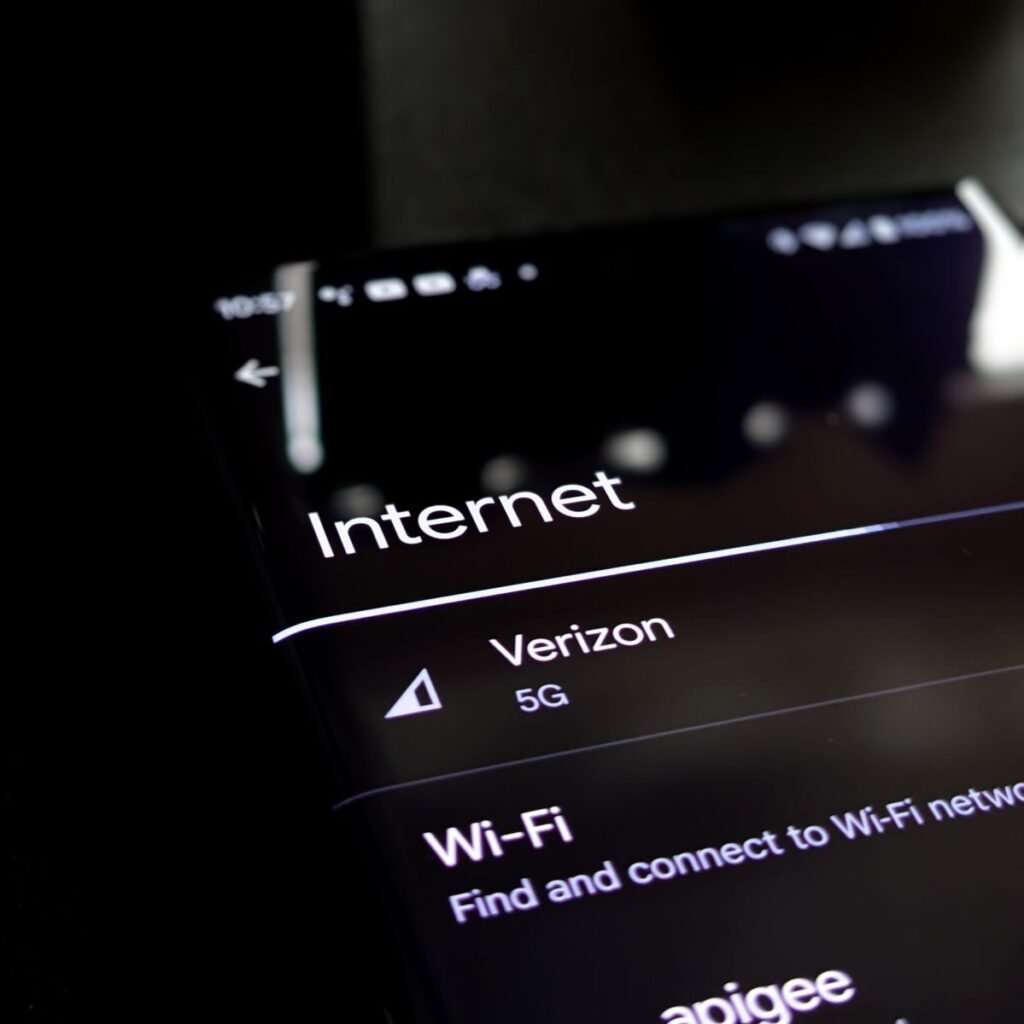
Changing Wi-Fi for a Ring doorbell doesn’t always mean wiping everything — a built-in app shortcut lets you update network credentials while keeping your settings intact.
A factory reset is a comprehensive option. It clears motion zones, event history, and every custom configuration you’ve spent time building. But if all you need to do is point your doorbell at a new router or updated network password, there’s a far less disruptive path. According to Ring Support, changing Wi-Fi through the app is a “soft” configuration change — your motion zones, notification preferences, and linked devices stay exactly where you left them.
Before you start, have your new Wi-Fi password written down and ready. Entering the wrong credentials mid-setup can leave your doorbell temporarily offline and require you to restart the process.
Here’s how to update your network without losing a single setting:
Open the Ring app, tap the three lines in the top-left corner, and select Devices.
Choose your doorbell, then tap Device Health.
Under the “Network” section, select Change Wi-Fi Network and follow the on-screen prompts to enter your new SSID and password.
The whole process typically takes under three minutes. It’s worth knowing this option exists before you commit to a full factory reset — because once you wipe the device, rebuilding those motion zones from scratch is time you won’t get back. That broader question of when a reset is truly necessary versus when it’s overkill is worth examining closely before you press any button.
The Bottom Line: What You Need to Know
Knowing when to reboot your Ring doorbell versus when to perform a full factory reset is the single most practical decision point for any Ring owner.
Here’s a quick-reference summary of the core principles covered throughout this article:
Reboot for minor glitches; factory reset for major failures or resale. A soft reboot resolves temporary freezes and connectivity hiccups without touching your settings. Reserve a full factory reset for persistent errors, ownership transfers, or significant app malfunctions.
Hold the setup button for 20 seconds for a complete wipe. Anything shorter may only restart the device rather than erase it — a distinction that matters when you’re preparing a device for a new owner or troubleshooting deep configuration errors.
Physical resets do not bypass account locks on inherited devices. As covered earlier, a previous owner’s account still tethers the device until they formally release it through the app, regardless of how thoroughly you press that button.
Wipe your device before selling to protect your personal data. According to The Zebra, only 13% of Americans understand how smart doorbell companies use personal data — making a factory reset before resale a critical, non-negotiable step.
These four principles apply across every Ring doorbell model currently available. With your device properly reset and reconfigured, the next logical step is hardening the account itself — because a fresh setup is only as secure as the access controls protecting it.
Securing Your Smart Home Post-Reset
A factory reset is only as effective as the security steps you take immediately after — skipping them leaves your smart home vulnerable from day one.
According to Ring, performing a hard reset clears the device’s internal cache and restores factory settings entirely, meaning no legacy data remains. That clean slate is valuable, but it also means every security layer you previously built needs to be reconstructed with intention.
Re-enable Two-Factor Authentication (2FA) first. Before you do anything else in the Ring app, navigate to Account Settings and turn 2FA back on. It’s the single fastest way to close the window of vulnerability that opens during any fresh device setup.
Audit your shared user access next. A reset is a natural moment to review who actually has permission to view your camera feed. Roommates who moved out, contractors you added temporarily, or family members with outdated access can linger in your account unnoticed. Remove anyone who isn’t a current resident.
Professional integration makes a lasting difference. Once security is locked down, consider whether your doorbell is performing at its full potential within your broader smart home setup. Optimal placement, wiring, and ecosystem integration — whether that’s syncing with smart locks, lighting, or voice assistants — often benefits from a knowledgeable hand. a professional service specializes in exactly this kind of smart home consultation, helping homeowners move from a functioning reset to a truly optimized system. Consider optimizing your Ring doorbell setup. Reach out to a professional service for a personalized smart home integration review.
Final Thoughts: The Expert’s Take on Maintenance
In my experience managing smart home ecosystems, I’ve found that the factory reset is the most misunderstood tool in a homeowner’s arsenal. Most users treat it as a last-ditch effort when they should view it as a necessary periodic “deep clean” for their security hardware. Having performed these resets on everything from the original 2014 Ring Video Doorbell to the latest Pro 2, I can tell you that the 20-second hold is the golden rule that separates a successful fix from a wasted afternoon.
Ultimately, your Ring doorbell is only as reliable as its connection and its configuration. Whether you’re clearing out a previous owner’s ghost settings or prepping the unit for its next life, doing it right ensures your home remains a sanctuary rather than a source of tech-induced stress. Take the extra five minutes to re-verify your motion zones and security layers post-reset—your future self will thank you the next time that notification pops up on your phone.
In my experience managing smart home ecosystems, I’ve found that the factory reset is the most misunderstood tool in a homeowner’s arsenal. It isn’t just a “delete” button; it’s a surgical strike for software corruption. I’ve seen countless users spend hours on support calls when a 20-second button hold would have solved the issue instantly.
My final piece of expert advice: don’t wait for a total failure. If your Ring doorbell starts lagging or the motion detection becomes inconsistent, perform a reboot first. If that doesn’t clear the “cobwebs,” go for the factory reset. A clean slate once a year can actually extend the functional life of your hardware and ensure your security is never a question of “if” it’s working, but “how well.”