
Samsung Smart TV Apps: Why They Are Missing and How to Fix Them
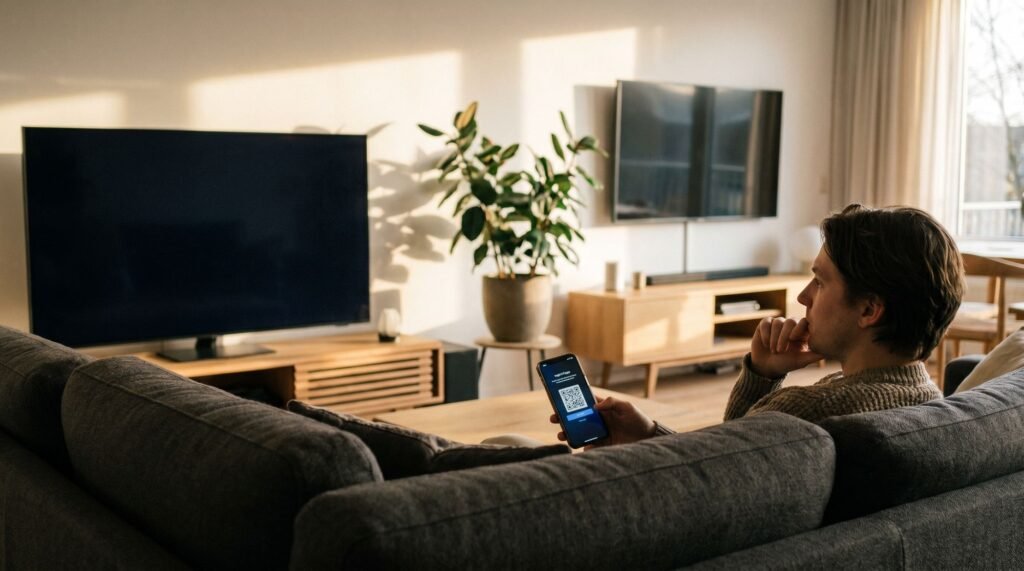
Why Your Samsung Smart TV App Experience Starts with an Account There is nothing more frustrating than unboxing a brand-new Samsung Neo QLED, setting it up in your living room, and realizing the one streaming app you actually pay for is nowhere to be found. I’ve spent the last seven years troubleshooting smart home setups, and the "missing app" phenomenon is easily the most common complaint I hear from Samsung owners. You search the Smart Hub, you see the icon, but that "Install" button is either grayed out or completely absent. It feels like a software bug, but in most cases, your hardware is perfectly fine—you're just hitting a hidden policy wall. After testing dozens of Tizen-powered sets—from older 2018 models to the latest flagship displays—I’ve realized that Samsung’s ecosystem is powerful but surprisingly strict. Whether you’re staring at a "no option to install apps" error or can't find a niche service like Criterion or Shudder, the fix usually isn't a factory reset. It’s about understanding the specific account requirements, regional fences, and hardware ceilings that Samsung doesn't clearly explain in the quick-start guide. Here is exactly why those apps are playing hard to get and how to finally force them onto your home screen. Knowing how to add apps on Samsung Smart TV sounds straightforward — until you hit a login wall you weren't expecting. Here's the core issue: Samsung requires an account to download and install any new app through the Smart Hub. You can browse pre-installed apps and use basic TV functions without signing in, but the moment you want to expand your app library, a Samsung account becomes mandatory. According to Samsung's official support documentation, this requirement is non-negotiable — no account means no installs. Account Required: Viewing pre-installed apps works without a login. Downloading anything new does not. This is Samsung's policy, not a bug. This wasn't always the case. Samsung gradually tightened its Smart Hub access requirements, shifting from optional sign-in to a fully enforced gate on app downloads. For new TV owners, this policy change catches a lot of people off guard — especially those who assume a connected TV works like a standalone streaming device. Signing in gives you two practical options. You can scan a QR code displayed on your TV screen using your phone, which links your account quickly without typing. Alternatively, manual entry lets you input your email and password directly using the remote. The QR method is noticeably faster, particularly if your Samsung account is already active on your cell phone. Understanding this account requirement is the first step. The next is knowing where inside the Smart Hub interface to actually find and install the apps you want. Navigating the Tizen OS: How to Find and Install New Apps The fastest path to any app on a Samsung Smart TV runs through three taps: Home, Apps, and Search — and knowing that sequence saves real frustration. Samsung's Tizen OS powers a massive ecosystem, and according to the Connected TV Marketing Association as of 2023, it holds a 12.8% global smart TV OS market share as of 2023, making it the leading platform worldwide. That scale means thousands of available apps — but only if you know where to look. So, how do you install apps on a Samsung Smart TV? Here's the standard workflow: Press the Home button on your remote to open the Smart Hub. Scroll left along the bottom bar and select the Apps icon. Tap the magnifying glass in the top-right corner to search by name — the most direct route when you already know what you want. Select the app from the results, then choose Install. Once installed, navigate back to Home and pin the app to your home screen for quick access. Discovery mode works differently. The Apps section organizes content by Editor's Choice and curated categories like Entertainment, Lifestyle, and Sports. Browsing these is useful when you're open to options — though it can feel slow compared to a direct search. One practical caveat: not every app visible in search will have an active install button. That's a separate issue — and one worth understanding before assuming your TV is broken. What to Do When There is No Option to Install Apps A grayed-out Install button is your TV communicating a specific problem — and almost every case traces back to one of three causes: insufficient storage, an account mismatch, or a temporary memory glitch. When users encounter no option to install apps on Samsung Smart TV, the grayed-out button is the most common symptom. In practice, this happens when the TV's internal storage is too full to accept a new installation, or when the active Samsung account doesn't match the region settings tied to the Smart Hub. Before assuming a deeper hardware problem, check storage first: navigate to Settings > Device Care > Manage Storage and remove any unused apps to free up space. The Cold Boot method is the most underrated fix for stubborn install failures. According to Samsung, holding the Power button on the remote for approximately 5 seconds — until the TV reboots on its own — clears temporary memory glitches that standard power-off cycles simply don't address. Pro Tip — Cold Boot vs. Standard Power-Off: Pressing Power once puts the TV into standby; background processes keep running. A Cold Boot forces a full memory flush, which is why it resolves installation blocks that a regular restart won't touch. The distinction matters because many users power-cycle their TV and see no change, then assume the app is permanently unavailable. That conclusion may be premature — though there are legitimate cases where an app truly won't appear in the store, and those reasons run deeper than a memory glitch. The Mystery of the Missing App: Why Some Apps Aren't Listed When you try to add apps to a Samsung TV not listed in the Smart Hub store, the absence is almost never random — it points to one
Samsung Smart TV Apps: Why They Are Missing and How to Fix Them Read Post »