
Why Your Nest Thermostat Is Not Working and How to Fix It
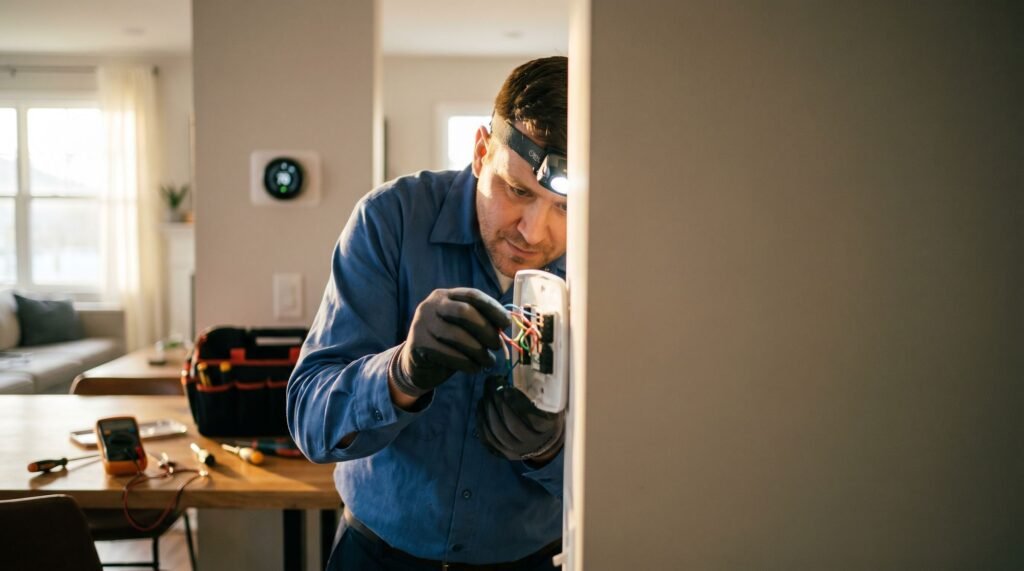
Why Your Nest Thermostat Stopped Working A blank screen, an unresponsive display, or a thermostat that keeps losing its Wi-Fi connection — these are the symptoms that send homeowners searching for answers about fixing Nest thermostat problems at the worst possible time. The root cause is almost never a software glitch — it's a power delivery failure. Before diving into diagnostics, one foundational concept matters: your Nest is designed exclusively for low-voltage (24V) HVAC systems. According to the Google Nest Compatibility Guide, thick wires connected with wire nuts are a definitive sign of a high-voltage system — and no amount of troubleshooting will make Nest work in that environment. For everyone else on a compatible system, the dead screen or erratic behavior you're experiencing almost always traces back to how power reaches the thermostat, not a firmware update gone wrong. In practice, the wiring at your thermostat base tells the whole story. The good news: most of these failures follow a predictable pattern, and working through them systematically gets results. What typically happens is that a single overlooked wire — or a missing one — creates a cascade of symptoms that look far more complicated than they actually are. That wiring question is exactly where the diagnostic process needs to start. The Power Problem: Why a C-Wire is Non-Negotiable The single most common root cause behind a malfunctioning Nest thermostat is inadequate power delivery — and a missing C-wire is almost always the culprit. Power-stealing explained. When no C-wire is present, the Nest uses a technique called "power stealing," quietly drawing small amounts of electricity through the heating and cooling wires to charge its internal battery. In practice, this trickle charge is rarely sufficient. The thermostat ends up running on a perpetually low battery, which forces it to make trade-offs — and the first thing it sacrifices is the Wi-Fi radio. That's why a dropped connection or an unresponsive display often isn't a networking issue at all; it's a power issue wearing a different mask. Why stability suffers. A low battery creates a damaging cycle: the thermostat disconnects from Wi-Fi to conserve energy, the battery partially recovers, it reconnects, then drains again. Google Nest Support confirms that a C-wire is required for consistent power delivery in 99% of Nest installations to avoid exactly these power-related errors. Without that steady 24V supply, no Nest thermostat fix will hold for long. Pro Tip: Before purchasing any adapter, remove the thermostat from its base and look closely at the wiring terminal. Many HVAC systems already have a blue or black C-wire tucked behind the wall plate that was never connected. Pulling it forward and securing it to the C terminal often solves the problem instantly — no extra hardware needed. C-wire adapters as a workaround. If your system genuinely lacks a C-wire, a plug-in C-wire adapter is a reliable and affordable solution. These devices connect to a nearby outlet and run a low-voltage wire to the thermostat base, mimicking the stable power supply the Nest needs. It's not the cleanest install, but it eliminates the power-stealing problem entirely. The next section will dig into what happens when power issues go one step further — triggering specific error codes that point to problems beyond the wiring. Decoding Error Codes: E73 and E74 Explained Error codes are your Nest thermostat's way of telling you exactly why it stopped working — and E74 is one of the most misunderstood codes homeowners encounter when trying to repair Nest thermostat. E74 means your thermostat is not detecting power on the Rh wire — but the cause is often completely unrelated to the thermostat itself. Here's where it gets counterintuitive. According to HVAC.com, the E74 error specifically indicates that the Rh wire is failing to detect power, and the trigger is frequently a tripped float switch inside your HVAC system's condensate drain pan. When the drain pan fills with water — usually because the condensate line is clogged — the float switch trips as a safety measure, cutting power to the thermostat entirely. Your display goes dark, and E74 appears. Clearing this is a straightforward process once you know what to look for: Locate the condensate drain pan, typically found beneath your indoor air handler or furnace. Check the float switch for standing water. If the pan is full, the switch has tripped and is actively blocking power. Clear the condensate line by flushing it with a mixture of warm water and white vinegar, or using a wet-dry vacuum to suction the blockage from the exterior drain outlet. Once the line is clear and the pan drains, the float switch resets automatically — and power returns to the Rh wire. In most cases, the E74 code clears on its own within a few minutes of reconnection. Of course, error codes aren't the only scenario where your Nest display goes completely unresponsive. Sometimes the internal battery drains too low to even show an error — and that requires a different fix entirely. Jumpstarting a Dead Nest Display Even after resolving C-wire problems and clearing error codes like E74, some Nest thermostats still refuse to turn on — and the culprit is often a battery that has dropped too low to boot the device at all. When the internal battery is fully depleted, the Nest display can't draw enough power to initialize, leaving the screen completely dark regardless of your wiring setup. As CNET notes, if your Nest thermostat won't turn on, charging it via a wall charger for 30–60 minutes can bypass the HVAC system's power issues entirely. This manual charge gives the battery enough juice to restart and reconnect to your system — no Nest thermostat wiring diagram changes required. Here's how to charge your Nest display manually: Remove the display — Pull the Nest display straight off its base with a firm, even tug. It will detach without tools. Locate the charging port — Flip the display over and find the USB port on the back (USB-C
Why Your Nest Thermostat Is Not Working and How to Fix It Read Post »